
What this helps you do
Add an existing Form directly to a page built with Engage Web. Visitors can complete the Form without leaving that page, and the Form automatically adapts from a two-column layout on wider screens to a single-column layout on phones.
This workflow is only for pages made with the Engage Web visual builder. Engage Spot does not currently provide iframe, script, or other embed code to copy into an external website.
Before you begin
- This workflow currently requires a full Admin. Limited Admins and Team Leaders cannot open the visual builder route.
- Engage Web must be enabled for your church.
- The destination must use the Visual Builder editing mode.
- Create and finish the Form first. Only Active Forms can be selected or displayed in a Form block.
- A Form can be Public or Unlisted. Both visibility options work in a Form block.
Adding or previewing a Form block does not create a submission. Selecting Submit in the page preview does create a real submission, may create a People record, and may send configured confirmation or welcome messages. Stop before that action unless you intend to save test data and trigger those outcomes.
Steps
Add the Form block
-
In the admin navigation, under Web, select Pages.
-
Select the page, then select Open Builder.
-
Choose where the Form should appear:
- On an empty page, select Add Section.
- In an existing layout, use Add Block in the appropriate column.
-
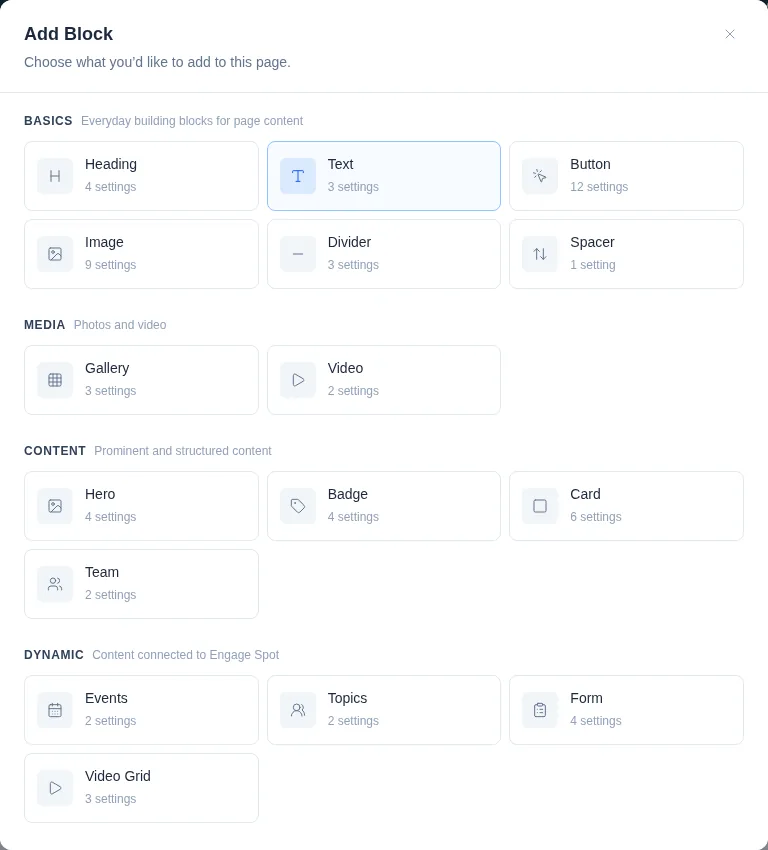
In Add Block, under Dynamic, select Form.
-
In the Form block panel, open Form and select the active Form you want to display.
The Form appears on the page canvas with its contact fields, custom questions, and Submit button. Engage Spot saves the change without publishing it and shows Saved in the builder toolbar.
Choose the heading and text
Under Heading & Text, choose what appears above the Form:
- Default — shows the Form title and its About content.
- Custom — enter a page-specific Heading and optional formatted Text.
- None — shows the Form fields without introductory content.
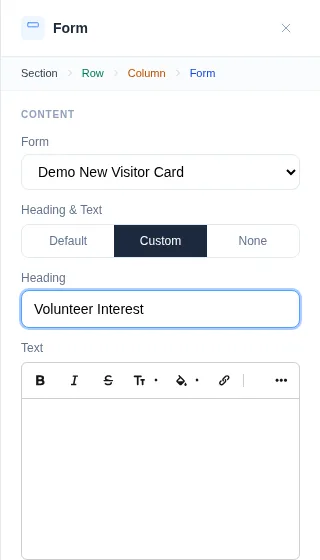
These choices change only this page block. They do not change the Form’s title or About content on its own public page.
Preview and publish the page
- Select Preview in the builder toolbar.
- Review the complete Form at desktop and phone widths. Contact fields and half-width questions display in two columns when space allows and stack in one column on a phone.
- Check the heading, text, field order, required indicators, and Submit button. Do not submit the preview unless you intend to create a real submission.
- Return to the builder. When the page is ready for visitors, select Publish or Publish changes.
What happens next
The Form is rendered as part of the Engage Web page; it is not an iframe. A visitor’s completed response goes to the selected Form’s submissions inbox.
The block stays connected to the Form itself rather than its public URL:
- Changing the Form’s URL Slug does not break an existing Form block.
- Changing between Public and Unlisted does not remove the Form from the page.
- Changing the Form to Closed or Trashed removes it from the selector and replaces it on the page with Select a form to embed here.
- Restoring or changing that same Form back to Active makes the existing block display it again.
Troubleshooting
The Form is missing from the selector
Open the Form’s Form settings and confirm that Status is Active. Closed and Trashed Forms are not listed. Visibility can be Public or Unlisted.
The page says “Select a form to embed here.”
The selected Form is no longer Active or no longer exists. Make the same Form Active again, or edit the block and select another Active Form.
A changed Form link no longer opens
Changing URL Slug invalidates the Form’s previous direct public link, but it does not affect a Form block. Share the Form’s new direct link where needed.
You need to place the Form on an external website
Engage Spot does not currently generate supported external embed code, and its public Form pages cannot be framed by another site. Share the Form’s direct link instead. Use Unlisted visibility if it should be available by direct link without appearing in the public Forms listing.
The builder is unavailable
Confirm that Engage Web is enabled and that the page uses Visual Builder. This workflow currently requires a full Admin; Limited Admin and Team Leader direct access returns Not Found.