
What this helps you do
Review the people and answers submitted through a Form, keep the inbox organized, and download submissions as a CSV file.
Before you begin
- An Admin can review, export, and change the status of submissions.
- A Limited Admin needs View permission for Forms to review and export submissions. They also need Edit permission for Forms to archive, trash, or restore a submission.
- Team Leaders cannot access Forms or their submissions.
A submission belongs to the Form through which it was received. Changing a submission’s status does not change or delete the respondent’s People record.
Steps
Find and review submissions
-
In the admin navigation, select Forms.
-
Find the Form. Its row shows the total number of submissions. Select the submission count, or open the Form and select Submissions.
-
Choose Inbox, Archived, Trashed, or All. Inbox is selected when you first open the page.
-
Select a respondent to open their submission.
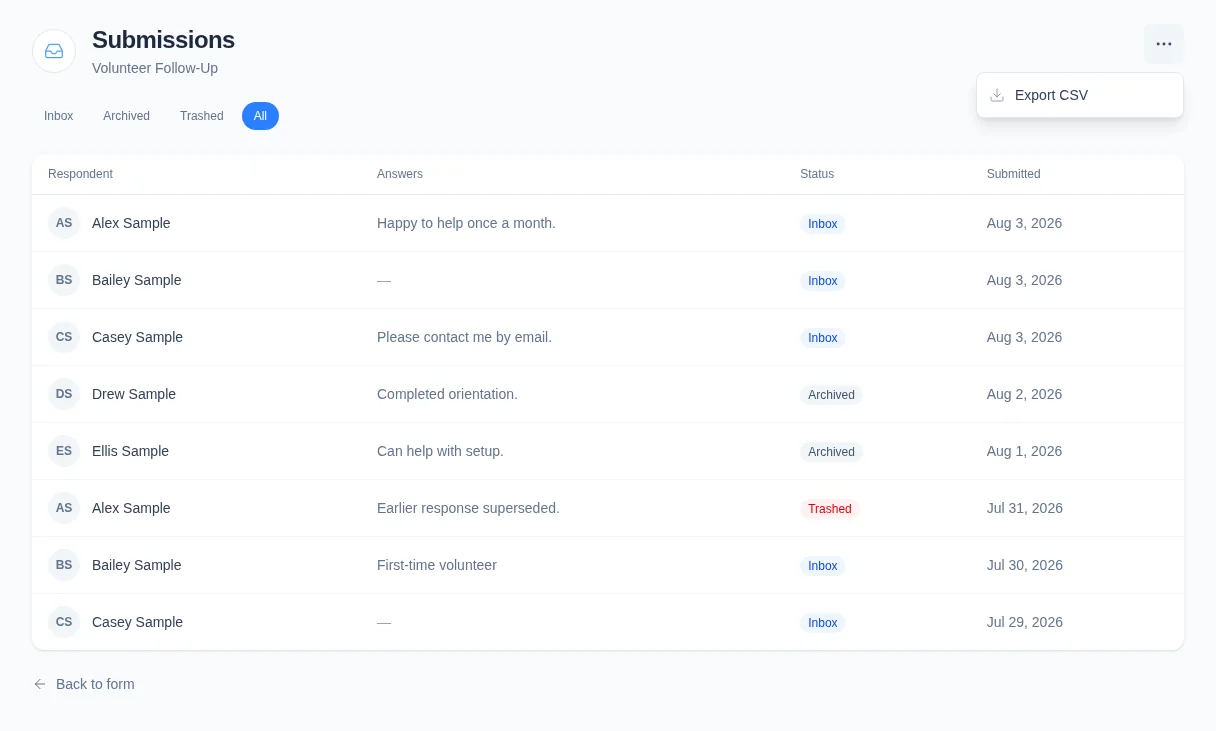
On a computer, each row shows the respondent, a preview of the first answer, the status, and the submission date. On a phone, the list shows respondent names; open a row to see its answers and status.
The list is ordered newest first. It shows every submission in the selected status and has no search, sort, or pagination controls.
Review a response
The submission page shows:
-
The respondent’s name and available email address or phone number. Select the name to open their People profile.
-
The answers and field labels saved when the response was submitted. This preserves the original context if the Form’s fields later change.
-
The submission status and date and time.
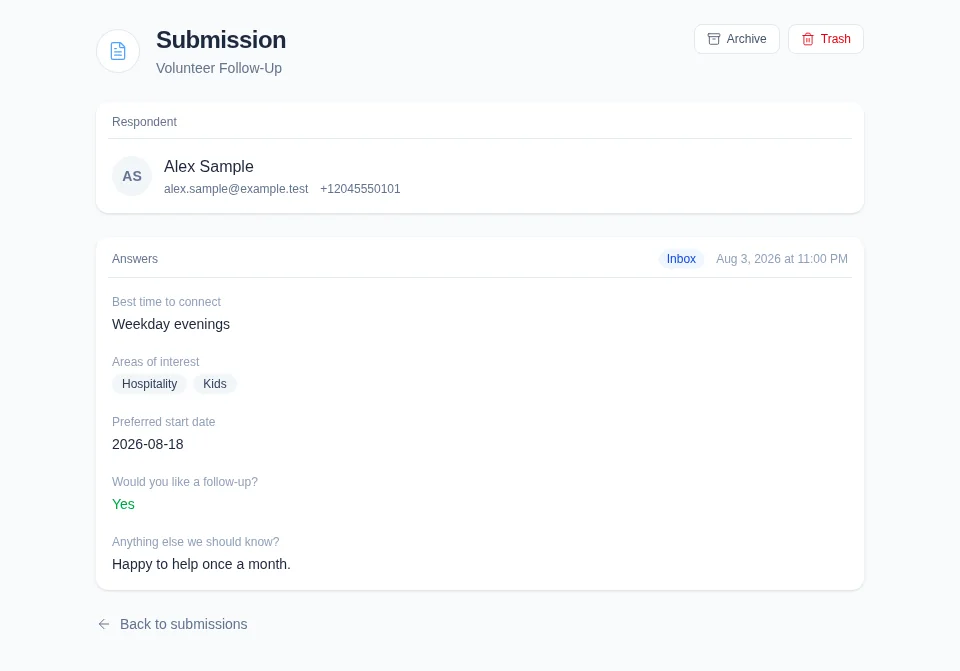
A dash means that no answer was recorded for a displayed field. If the response has no answers at all, Engage Spot shows No answers recorded. Multiple selected options appear as separate labels, and Yes/No answers appear in plain language. There is no submission-notes field.
Change a submission’s status
- Open the submission.
- Choose the action that matches what you want to do:
- Select Archive to remove an Inbox submission from the active queue without discarding it.
- Select Move to Inbox to return an Archived submission.
- Select Trash, then confirm, to move a submission to Trashed.
- Select Restore to return a Trashed submission to Inbox.
The submission page reloads with the new status. Trashing a submission does not permanently delete it, and there is no permanent-delete action.
Export submissions
- Return to the submissions list and choose the status you want to export. Choose All to include Inbox, Archived, and Trashed submissions.
- Open More submission actions in the top-right corner.
- Select Export CSV.
Engage Spot downloads the currently selected status in newest-first order. The filename uses the Form title and current date, such as volunteer-follow-up-submissions-2026-08-04.csv.
The CSV starts with these columns:
- First name
- Last name
- Phone
- Status
- Submitted at
The remaining columns follow the Form’s current field order. If the selected submissions contain answers to older fields that are no longer on the Form, those historical field columns follow the current fields. Multiple selections are joined with commas, Yes/No values are written as text, and missing values are blank.
Export CSV remains available when the selected status is empty. In that case, the file contains column headings and no submission rows.
What happens next
Status changes immediately affect which filter contains the submission. The Form’s total submission count still includes Inbox, Archived, and Trashed submissions.
A CSV is a snapshot of the selected view at download time. Later submissions and status changes do not update a file you already downloaded.
Troubleshooting
A submission is missing
Check Archived, Trashed, and All. The default Inbox view does not include submissions in the other statuses.
There is no submission search. If you know the respondent but not the status, choose All and review the newest-first list.
You can open a submission but cannot change its status
Ask an Admin to give your Limited Admin role Edit permission for Forms. View permission allows review and export, but status changes require Edit permission.
Some details are hidden on a phone
The phone list shows respondent names only. Select a respondent to see their contact context, complete answers, status, and submitted time.
An exported answer column is unexpected
The export includes current Form fields and any historical fields represented in the selected submissions. This keeps answers understandable after a Form field is renamed or removed.
The CSV has headings but no rows
The selected status has no submissions. Return to the list, choose another status or All, then export again.