
What this helps you do
Create a Form for collecting information, choose the contact details it asks for, and make it public or available only through a direct link.
Engage Spot does not create a Form as a private draft. A new Form becomes Active and Public when you select Create Form. Prepare its title and public information before creating it. You can then build its fields as a separate task.
Before you begin
- A full Admin can create, edit, and publish Forms.
- A Limited Admin needs Forms View, Create, and Edit permissions to complete this workflow. View opens Forms, Create adds one, and Edit changes its settings and availability.
- Team Leaders cannot access Forms.
- Ask a full Admin to confirm that your church’s public Forms page is enabled. If that page is disabled, public and unlisted Form links do not open.
- Decide how people should identify themselves before filling out the Form:
- Phone and optional email
- Phone only
- Email only
Creating, publishing, or editing a Form does not create a submission. Submission confirmations and the questions people answer are configured separately.
Steps
Create the Form
-
In the admin navigation, select Forms.
-
Select Add Form.
-
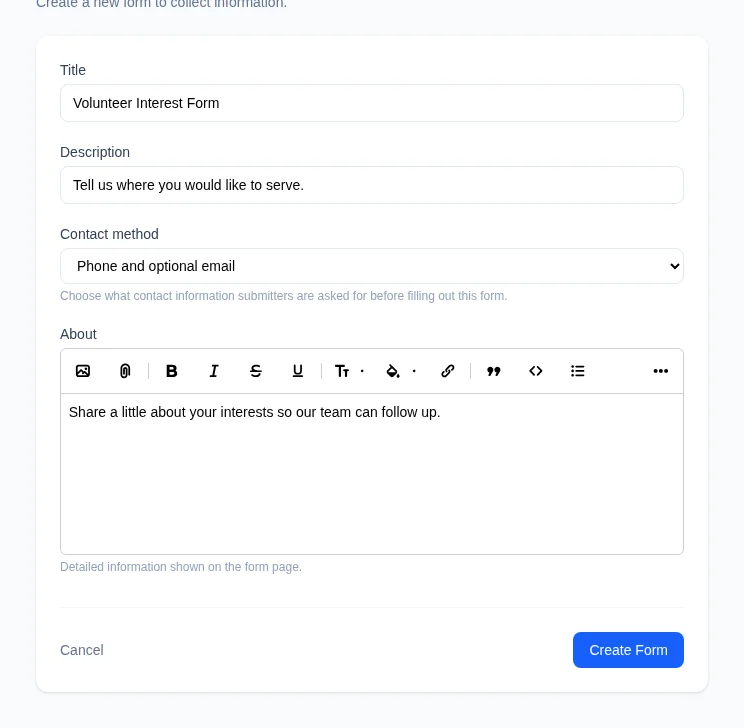
Enter a Title. This is shown on both the admin and public Form pages.
-
Optionally enter a Description. It appears in the public Forms listing.
-
Under Contact method, choose the contact details people are asked for before they fill out the Form.
-
Optionally add About information. This formatted content appears on the Form’s public page.
-
Select Create Form.
Engage Spot opens the Form builder. The new Form is immediately Active with Public visibility and has a URL slug generated from its title.
Choose the Form’s availability
-
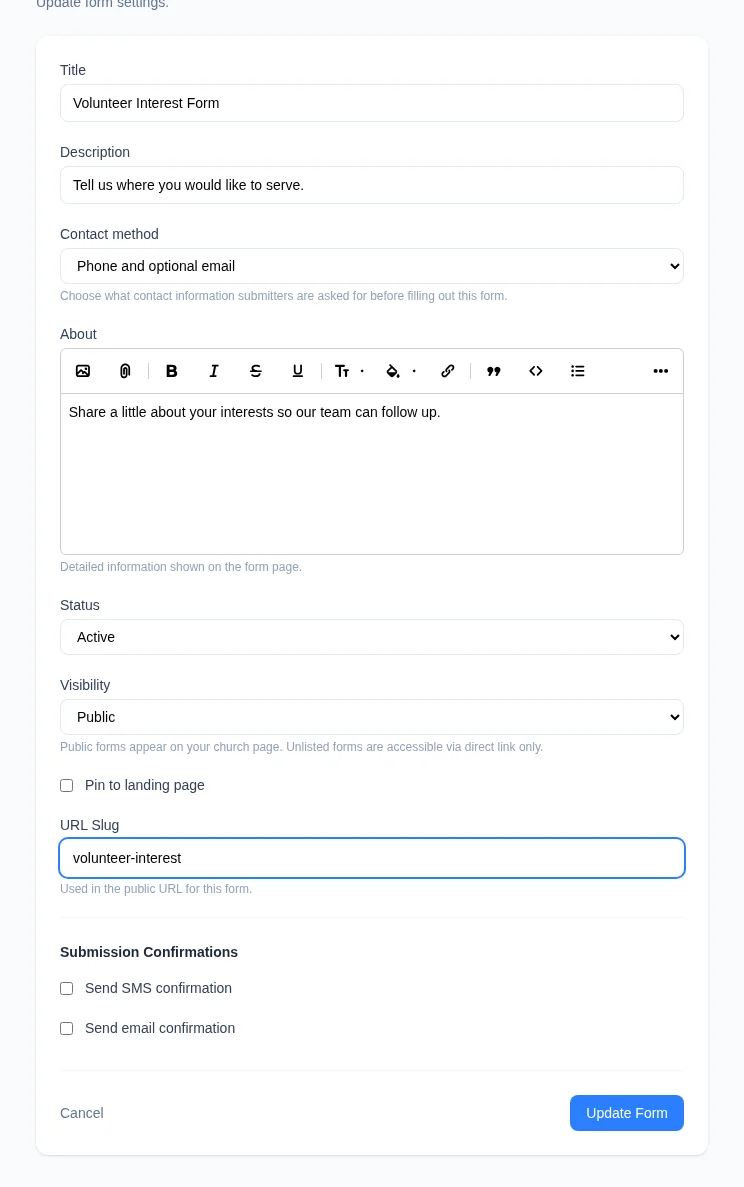
On the Form builder, open More form actions, then select Form settings.
-
Leave Status set to Active while the Form should accept submissions. Choose Closed when it should stop accepting submissions and its public link should no longer open.
-
Under Visibility, choose how people can find an Active Form:
- Public — appears on the public Signups & Forms page and opens through its direct link.
- Unlisted — does not appear on the Forms listing but opens for anyone with its direct link.
Forms do not have a Private visibility option. Use Closed when the direct public link must not open.
-
Review the URL Slug. It forms the last part of the public URL. If you change it, previously shared direct links no longer open.
-
Select Update Form.
Engage Spot returns to the Form builder. An Active Form shows View page, which opens the public page in a new tab.
Edit the Form later
- In Forms, select the Form.
- Open More form actions, then select Form settings.
- Update the title, description, contact method, About information, status, visibility, or URL slug.
- Select Update Form.
Changes to an Active public or unlisted Form take effect immediately.
What happens next
An Active Public Form appears on the public Forms listing and opens through its direct link. An Active Unlisted Form opens only through its direct link. A Closed or Trashed Form remains available to permitted admins but is absent from the public listing and its direct public link does not open.
The Form builder shows the automatically included contact fields. You can now add and arrange the questions people will answer. Building fields, managing submissions, and configuring submission confirmations are separate tasks.
Troubleshooting
The Form is not created
Title is required. If you submit the empty form, Engage Spot shows Title can’t be blank and Slug can’t be blank because it cannot generate the URL slug without a title. Enter a title, then select Create Form again.
The Form does not appear on the public Forms page
Open Form settings and confirm that Status is Active and Visibility is Public. An Unlisted Form works only through its direct link. Closed and Trashed Forms do not open publicly.
If the settings are correct but the Forms page or direct link still does not open, ask a full Admin to confirm that the church’s public Forms page is enabled.
The direct link no longer opens
Confirm that the Form is Active and that its URL uses the current URL Slug. Changing the slug invalidates the old direct link. A Closed or Trashed Form does not open publicly.
Add Form or Form settings is unavailable
A Limited Admin needs Forms Create permission for Add Form and Forms Edit permission for Form settings. Ask a full Admin to review those permissions. Team Leaders cannot access Forms.