
What this helps you do
Keep your church details, branding, and public-page availability up to date.
Before you begin
You need to be an Admin or a Limited Admin with permission to view and edit Church Settings.
If you plan to update your branding, prepare:
- A logo in PNG, JPG, or SVG format. The recommended size is 200 × 200 pixels or larger.
- A square icon in PNG or SVG format. The recommended size is 32 × 32 or 64 × 64 pixels.
- A primary color as a six-character hexadecimal value, such as
#43998D.
Steps
-
In the admin navigation, select Church Settings.
-
Under Church, select Church Details.
-
Select Edit.
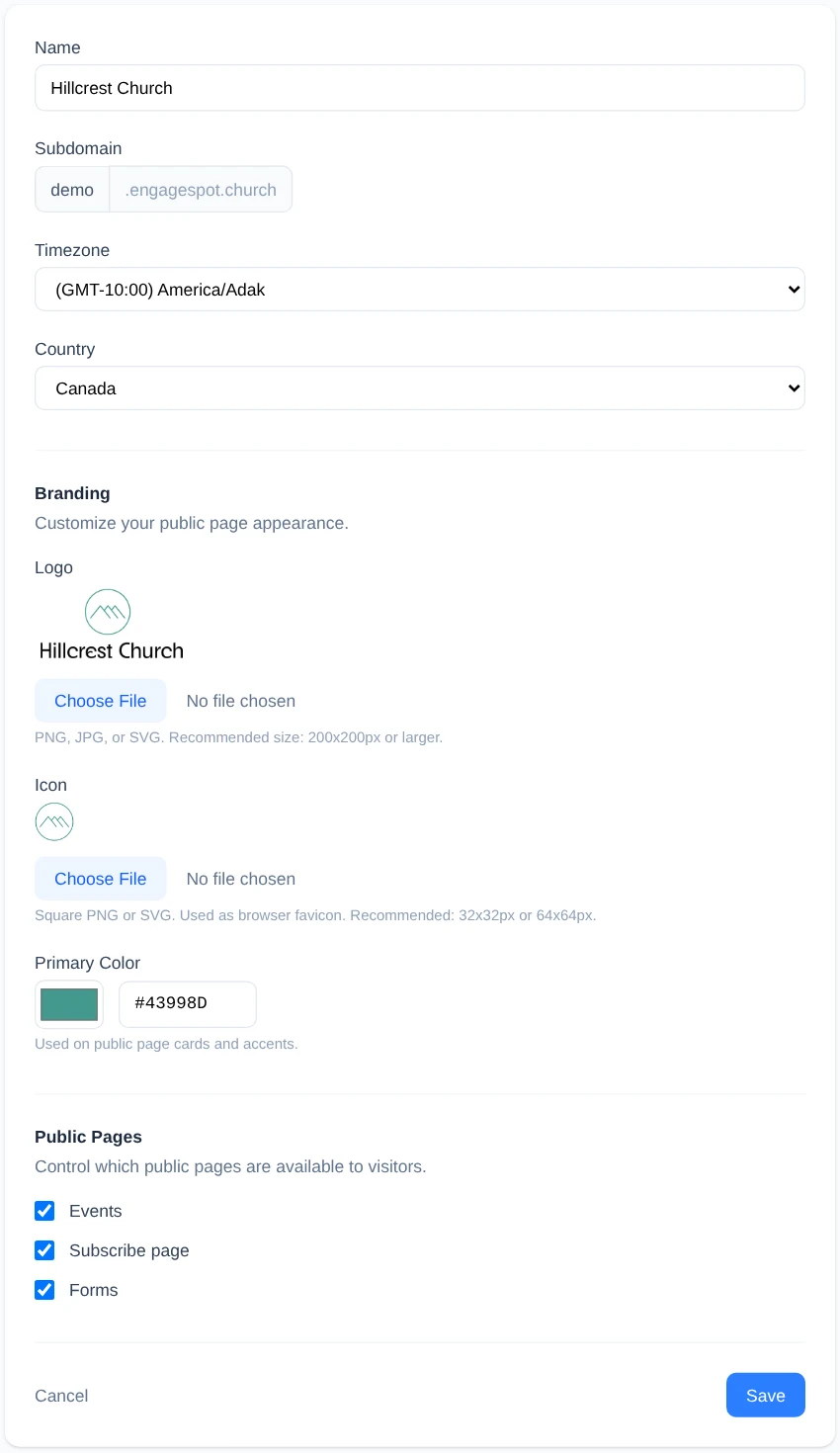
-
In Name, enter the name visitors and administrators should see. The Subdomain is shown for reference and cannot be changed on this page.
-
In Timezone, choose the timezone Engage Spot should use for your church.
-
In Country, choose United States or Canada.
-
Under Branding, update any of these optional settings:
- Under Logo, select Choose File and choose your church logo.
- Under Icon, select Choose File and choose the square image used as the browser icon.
- Under Primary Color, use the color picker or enter a hexadecimal color value.
-
Under Public Pages, select the pages visitors should be able to use:
- Events
- Subscribe page
- Forms
-
Select Save.
What happens next
Engage Spot returns to Church Details and shows the saved information. Updated branding is used on your church’s public pages. The selected public pages are shown as Enabled; pages you cleared are shown as Disabled.
Troubleshooting
You cannot open or edit Church Details
Your role does not have the required Church Settings permissions. Ask an Admin to update the church profile or your Limited Admin permissions.
Engage Spot asks you to fix errors
Name, Timezone, and Country must have values. Review the message under Please fix the following errors, correct the listed fields, and select Save again.
Your logo or icon did not change
Return to Edit, choose the new file again, and select Save. Leaving a file field empty keeps the current image.
You cannot change the subdomain
The church subdomain is set when the account is created and is read-only on the Church Details form.