
What this helps you do
Use the Engage Spot admin navigation to find the tools available to your role.
Before you begin
You need to be signed in as an Admin, Limited Admin, or Team Leader.
Your role, permissions, and your church’s enabled features determine which navigation items you can use. Your menu may not include every item described below.
Steps
-
Sign in to Engage Spot. The Dashboard opens.
-
Find the navigation menu:
- On a computer, the menu stays on the left side of the admin area. Use the collapse button beside the EngageSpot logo to show only icons. Select the logo icon to expand the menu again.
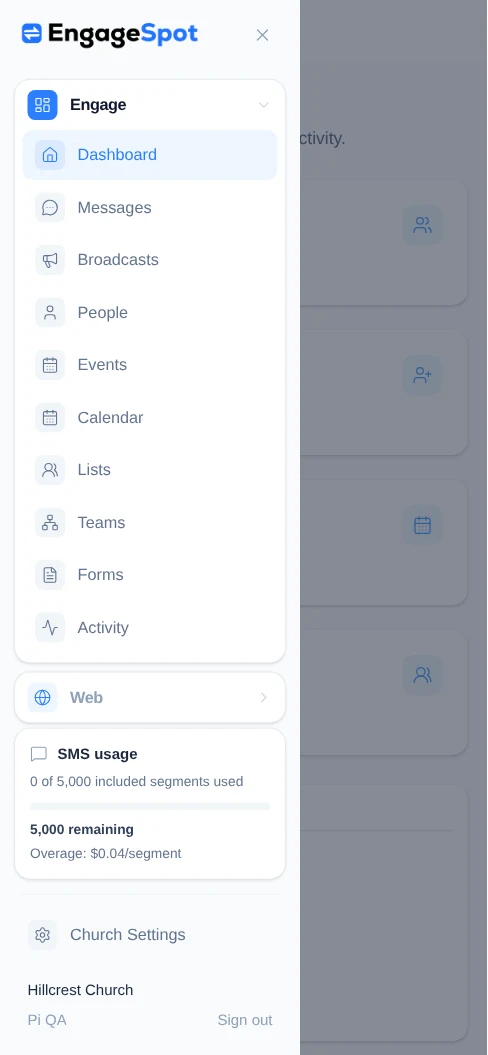
- On a phone or tablet, select the menu icon in the top-left corner. Select the close icon or the shaded area outside the menu when you are finished.
-
Use Engage for your church’s communication and people tools:
- Dashboard shows an overview and quick actions.
- Messages opens one-to-one conversations.
- Broadcasts opens messages sent to an audience.
- People opens contact records.
- Events and Calendar open event management and the event calendar.
- Lists opens reusable groups of people.
- Teams opens teams and their members.
- Forms opens forms and submissions.
- Activity opens the church activity history.
-
If Web appears, select it to open your church website tools. Depending on your access, this section can include Pages, Posts, Media, Redirects, Analytics, and Settings. Web appears only when the website feature is enabled for your church and your role has access. Analytics also requires website analytics to be connected.
-
Select Church Settings to manage church-level options available to your role. These can include Church Details, Phone Numbers, Email Addresses, Locations, Usage, Billing, Notifications, and Team.
-
When you are finished, select Sign out at the bottom of the navigation menu.
What happens next
Engage Spot highlights the page you selected and opens its navigation section. You can return to Dashboard at any time by selecting Dashboard or the EngageSpot logo.
Troubleshooting
A navigation item is missing
Your role may not have access to that area. Limited Admin access depends on permissions chosen by an Admin. Team Leaders see only the areas needed to work with the teams they lead.
Ask an Admin for your church if you need access to another area.
Web does not appear
The Web section appears only when your church’s website feature is enabled and your role has website access. Ask an Admin to confirm both settings.
Church Settings returns you to the Dashboard
Your role does not have access to Church Settings. Ask an Admin if you need a church setting changed.