
What this helps you do
Choose whether a Form sends an SMS confirmation, an email confirmation, or both after a successful submission. You can write the message for each channel and understand the separate on-screen success message every submitter sees.
Saving these settings does not submit the Form or send a confirmation.
Before you begin
- A full Admin can configure Form confirmations.
- A Limited Admin needs Forms View permission to find and open the Form, and Forms Edit permission to open Form settings and save changes. Someone with Edit but not View can reach the settings through a direct link, but cannot navigate to the Form from Forms.
- Team Leaders cannot access Forms or their settings.
- For SMS confirmations, the church needs a default sender phone number. For email confirmations, it needs a default sender email address. Sender setup is managed separately from the Form.
- A submitter needs the matching contact detail and Given communication permission for a confirmation to reach them on that channel.
The respondent confirmation settings are separate from Notification preferences → Form submissions. That preference controls notifications to administrators and Team Leaders; it does not turn respondent confirmations on or off.
Steps
- In the admin navigation, select Forms.
- Open the Form you want to update.
- Open More form actions, then select Form settings.
- Find Submission Confirmations.
- To configure an SMS confirmation:
- Select Send SMS confirmation.
- Enter the SMS message.
- To configure an email confirmation:
- Select Send email confirmation.
- Enter the Subject.
- Enter and format the Body.
- Select Update Form.
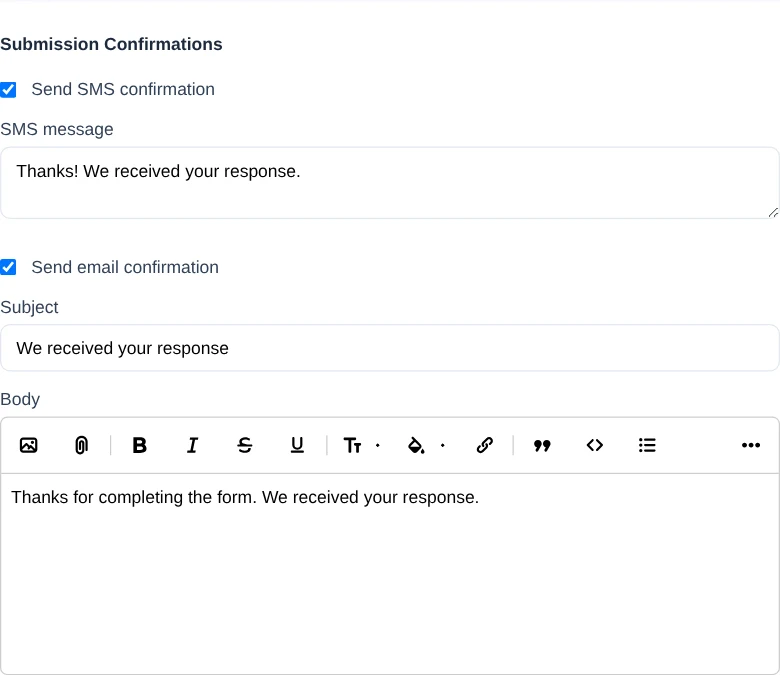
The SMS and email options work independently. Clear a channel’s checkbox and select Update Form when that type of confirmation should stop.
If an enabled channel’s content is blank, Engage Spot accepts the update and uses wording generated from the Form title:
- SMS: Thanks for submitting [Form title]!
- Email subject: Thanks for submitting [Form title]
- Email body: Thanks for submitting [Form title]! We’ve received your response.
Enter your own wording when the submitter needs next steps, timing, or contact information.
What happens next
The saved settings apply to future submissions. They do not send anything immediately and do not add confirmations to earlier submissions.
After a successful submission, the Form itself shows Thank you! followed by the submitter’s first name and your response to [Form title] has been submitted. This on-screen message confirms that Engage Spot accepted the response. It appears independently of the SMS and email settings and does not confirm that either message was delivered.
For each new submission, Engage Spot considers the enabled channels separately. A channel also requires the submitter’s Given permission and the church’s default sender for that channel. SMS and email confirmations can therefore have different outcomes for the same person.
Troubleshooting
The Form settings do not save
Title and URL Slug are required for every Form update. If either is empty, Engage Spot shows Title can’t be blank or Slug can’t be blank. Restore the missing value, review the confirmation settings again, and select Update Form.
Confirmation message fields do not have separate required-field errors. Blank content falls back to the generated wording shown above.
The success message appeared but no confirmation arrived
The on-screen success message confirms the submission, not message delivery. Check the affected channel:
- The channel is enabled in Submission Confirmations.
- The church has a default sender for that channel.
- The person’s record has the required phone number or email address.
- The person’s communication permission for that channel is Given.
The current Form settings screen does not warn you when a default sender is missing. Ask a full Admin to review the church’s sender settings.
Only one of the two confirmations arrived
SMS and email are evaluated independently. Check the missing channel’s checkbox, default sender, contact detail, and communication permission. One working channel does not mean the other channel meets its requirements.
A Limited Admin cannot find Form settings
Ask a full Admin to review their Forms permissions. View lets them find and open Forms; Edit lets them open the settings route and submit updates. Team Leaders cannot manage Forms.