
What this helps you do
Control when a Form accepts submissions without permanently deleting it. You can close and reopen a Form, move it to trash, restore it as Closed, and use the status filters to find it again.
Before you begin
- A full Admin can complete every step.
- A Limited Admin needs Forms View permission to find and open Forms. Forms Edit permits status changes and restoration. Forms Delete provides the confirmed Move to trash action.
- Team Leaders cannot access Forms.
- Closing or trashing a Form does not delete its fields or submissions.
Changing a Form’s status does not create a submission or send a message.
Steps
Find Forms by status
- In the admin navigation, select Forms.
- Select the filter you need:
- Active shows Forms that can accept submissions. This is the default view.
- Closed shows Forms that have been stopped without being trashed.
- Trashed shows Forms moved to trash.
- All shows every status.
- Select the Form’s title to open it.
The count below Forms reflects the selected filter. Forms within a filter are ordered alphabetically by title.
Close or reopen a Form
-
Open the Form.
-
Open More form actions, then select Form settings.
-
Under Status, choose:
- Closed to stop accepting submissions.
- Active to reopen the Form.
-
Select Update Form.
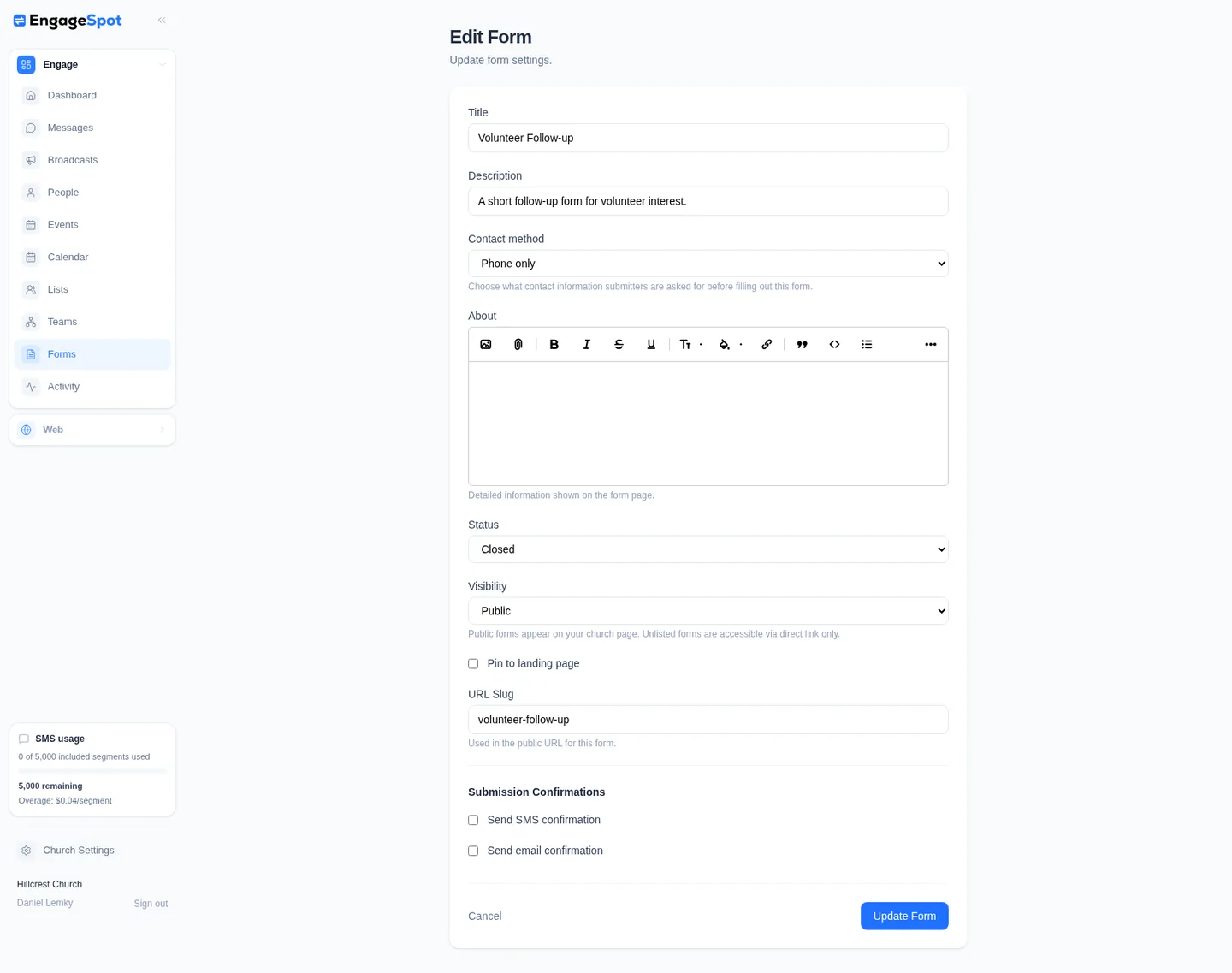
Engage Spot returns to the Form builder, where the status appears below the title.
The Status menu also includes Trashed. Selecting it and then Update Form moves the Form to trash. The dedicated Move to trash workflow below asks for confirmation.
Move a Form to trash
- Open the Form.
- Open More form actions and select Move to trash.
- Confirm Move “Form title” to trash? It will no longer accept submissions.
Engage Spot returns to the default Active Forms view. Select Trashed to find the Form. Moving a Form to trash also removes it from the landing page if it was pinned.
Restore a trashed Form
-
In Forms, select Trashed.
-
Open the Form.
-
Open More form actions, then select Restore as closed.
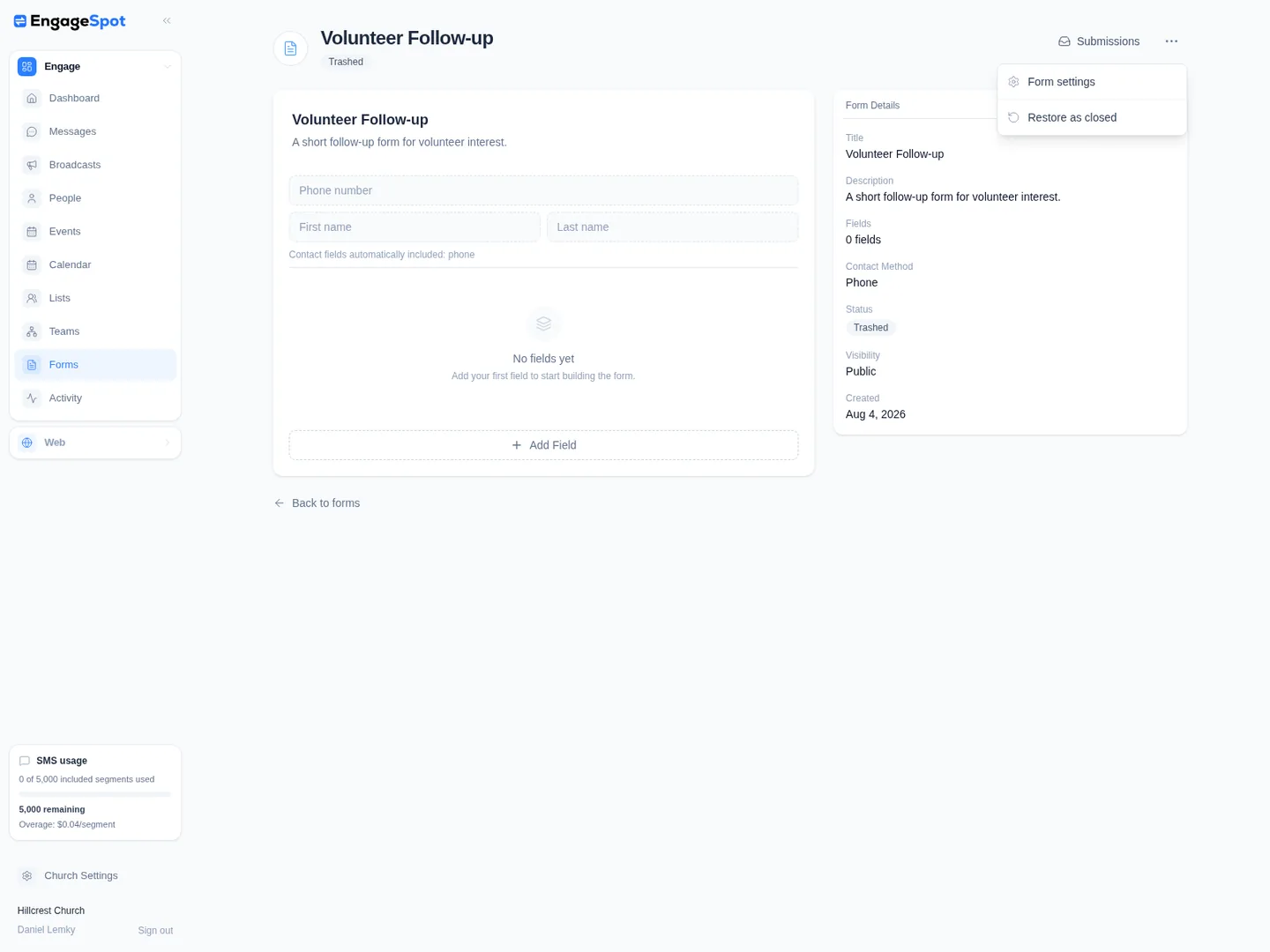
The Form is restored to Closed, not Active. It appears under Closed and All. To make it accept submissions again, open Form settings, change Status to Active, and select Update Form. Restoring does not pin the Form again.
What happens next
An Active Public Form appears on the public Signups & Forms page and opens from its direct link. An Active Unlisted Form stays off the listing but still opens from its direct link.
A Closed or Trashed Form does not appear on the public listing, and its direct public link does not open. Its admin record, fields, and submissions remain available to permitted admins.
Trash is the final deletion boundary in the admin interface. There is no action to permanently delete a Form. Move to trash changes its status; it does not remove the record.
Troubleshooting
The Form disappeared after I closed or trashed it
The Forms page opens with Active selected. Choose Closed, Trashed, or All to find the Form in its current status.
The public listing or direct link does not open
Open the Form as an admin and check its status. Closed and Trashed Forms are unavailable publicly. Reopen the Form by changing Status to Active in Form settings.
If an Active Form is missing only from the public listing, check Visibility. An Unlisted Form opens only from its direct link.
Form settings, Move to trash, or Restore as closed is missing
Ask a full Admin to review your Forms permissions. A Limited Admin needs Edit for Form settings, status changes, and Restore as closed. Delete provides Move to trash. View alone does not allow changes. Team Leaders cannot access Forms.
Status is not shown in the Forms list on a phone
The phone list keeps each row compact and does not show the status badge. Use Active, Closed, Trashed, or All to choose a status, then open the Form to see its status and More form actions.