
What this helps you do
Find the people and communication tools available to you as a Team Leader, and understand where your access stops.
Before you begin
- An Admin must make you a Leader of at least one active Team.
- Your Team Leader role follows your led Teams. It does not give you access to every Team or every person at your church.
- Ask an Admin to change Team membership, make you a Leader of another Team, or complete a task outside your access.
Steps
-
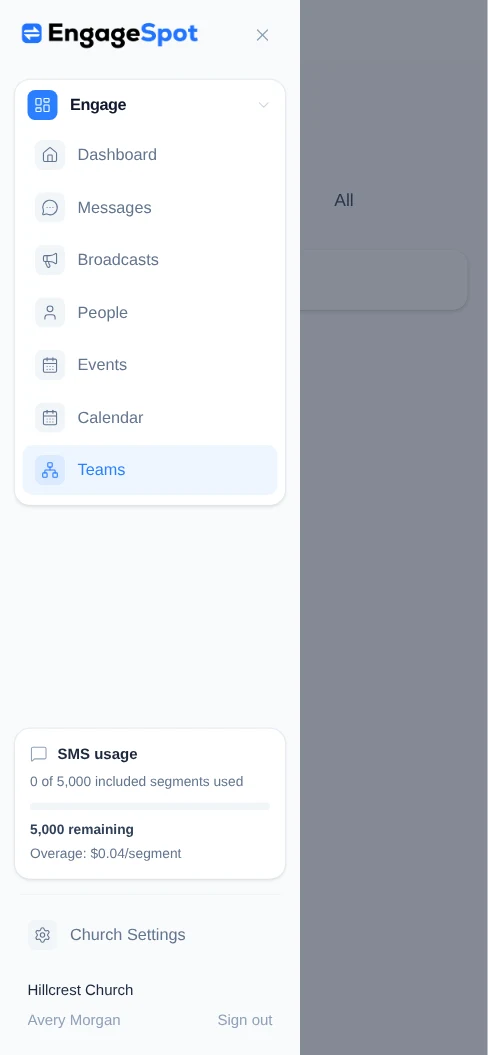
Sign in to Engage Spot. As a Team Leader, the admin navigation includes Dashboard, Messages, Broadcasts, People, Events, Calendar, and Teams.
-
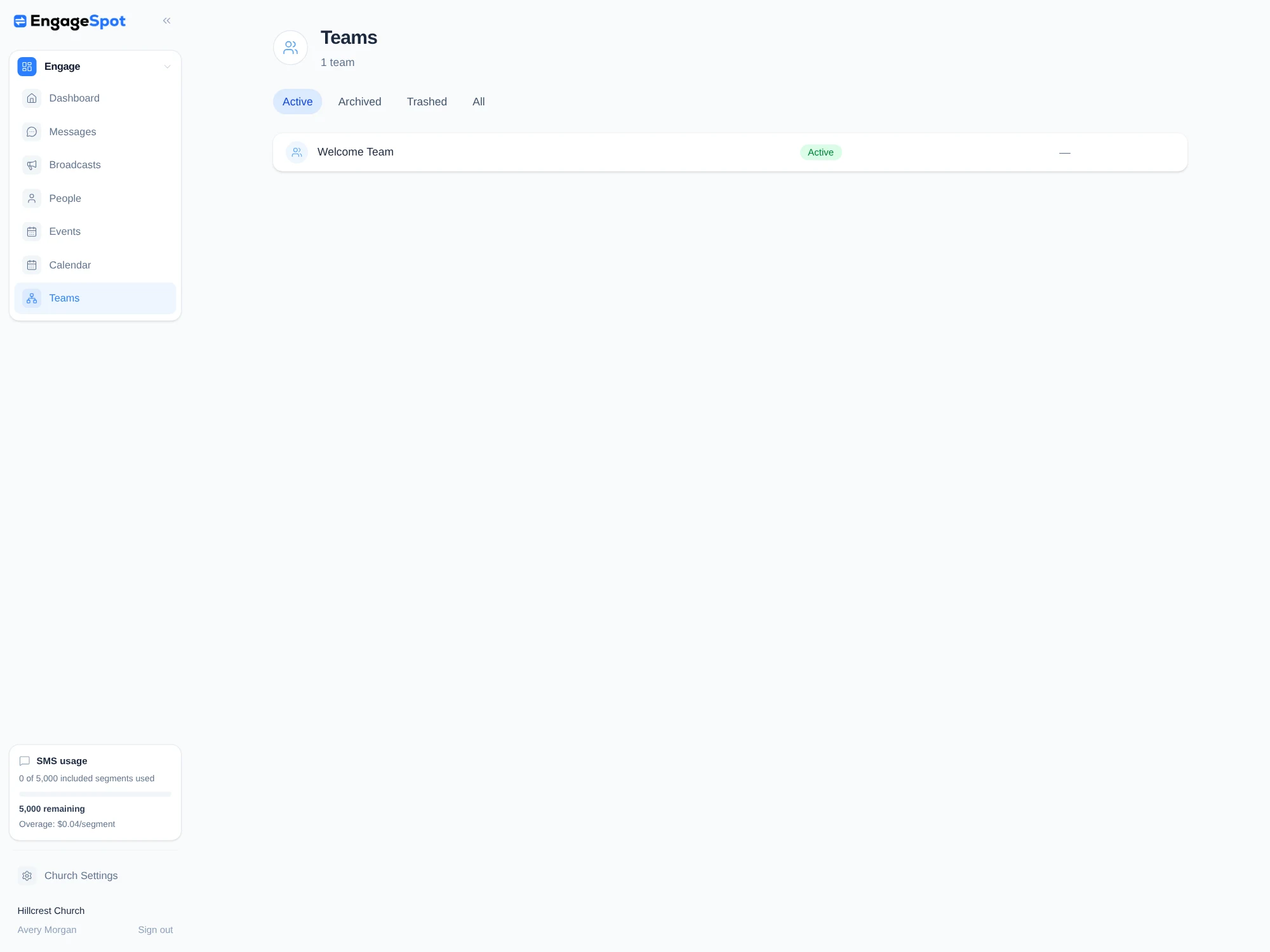
Select Teams. The list contains only Teams where you are a Leader. A Team you belong to only as a Member does not appear.
-
Select a Team to see its Leaders and Members. Select a person’s name to open the contact details available to you. You can also open the more-actions menu and select Export members to download that led Team’s member list.
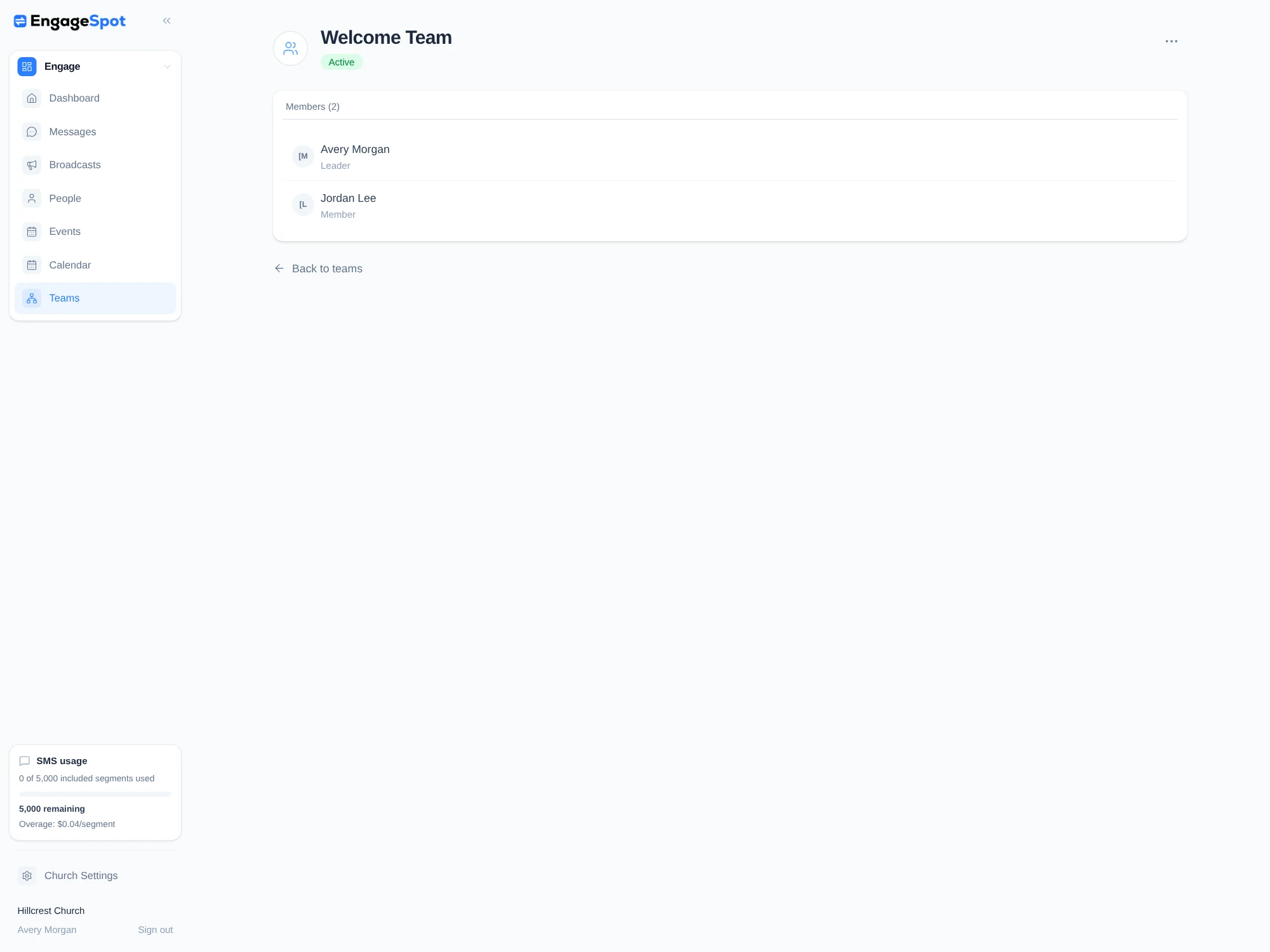
Team Leaders cannot add, remove, or change members; create, edit, archive, or trash Teams; or open a Team they do not lead. Ask an Admin to make those changes.
-
Select People to find people who belong to at least one Team you lead. Search and contact-status filters apply within that group. A person’s page shows their contact details, but not family information, Lists, Event registrations, Team assignments, recent activity, or editing controls. A direct link to a person outside your led Teams returns Page not found.
-
Use the other available areas as needed:
- Events and Calendar show church Events. You can create an Event, but a Team Leader’s Event must remain private or unlisted. You cannot edit, publish, trash, or restore Events. On the new Event form, Create Event is the final action that creates it; select Cancel if you are only reviewing the form.
- Broadcasts shows Broadcasts for Teams you lead. New Broadcast lets you choose only an active led Team as the audience. Lists, Events, Forms, Custom audiences, and other Teams are unavailable. Sending or scheduling happens only after a separate final confirmation; leave the draft or cancel unless you intend to contact people.
- Messages shows existing conversations with people in your led Teams. You can read those conversations, but you cannot start a conversation, reply, archive, or restore one. A direct link to another person’s conversation returns Page not found.
-
On a phone, select the menu icon in the top-left corner to open the same Team Leader navigation. Select the close icon or the shaded area to return to the page.
What happens next
Your access changes automatically when an Admin changes the Teams you lead. People, Team Broadcasts, and conversations outside your current led Teams no longer open, even from a saved direct link.
Troubleshooting
A Team or person is missing
Ask an Admin to confirm that the Team is active, that you are assigned as a Leader rather than a Member, and that the person belongs to that Team.
“Page not found” appears from a direct link
The item may be outside your led-Team scope, or the action may require an Admin. Return to the relevant page from the navigation instead of changing the address. Access is checked on every request.
Lists, Forms, Activity, Web, or settings are unavailable
Those areas are not included with Team Leader access. Although Church Settings appears at the bottom of the menu, a Team Leader cannot open it. Ask an Admin to complete the task. Direct links to these areas also return Page not found.
You need to change a Team, person, Event, or conversation
Team Leader access is intentionally limited. Ask an Admin for the change rather than using a direct link. Admin and Limited Admin access is separate and may expose different actions.