
What this helps you do
See Events on a month calendar, move between months, filter by visibility, and open an Event for its complete details.
Before you begin
- A full Admin can open the calendar and every Event on it.
- A Limited Admin needs Events View permission. Without it, Events and Calendar are hidden and the direct calendar route returns Not Found. Events Create permission is also required for Add Event to appear.
- A Team Leader can open the calendar, view all of the church’s Events, and add a private or unlisted draft Event. The calendar is not limited to Events associated with teams they lead.
- Event dates use your church’s timezone. The calendar does not display times or a timezone label; open an Event to confirm its exact time.
- Every Event has a start and end date and time. There is no all-day setting.
The calendar includes Published, Draft, Cancelled, Trashed, upcoming, and ended Events whose dates overlap the visible grid. All statuses use the same calendar style, so open an Event or use list view when you need to confirm its status.
Steps
Open and move around the calendar
- In the admin navigation, select Calendar. You can also select Events, then select the calendar icon beside the list icon.
- Use the left and right arrow controls above the grid to move one month backward or forward.
- Look for the date with a blue circle to find today in your church’s timezone. Dates from the previous or next month appear in lighter text at the edges of the grid.
The calendar has one month view. It does not have week, day, or Today controls. A month with no Events shows an empty grid without an empty-state message.
Find and open an Event
- Select All, Public, Private, or Unlisted above the calendar:
- All shows every visibility.
- The other choices show only Events with that visibility.
- Find the Event on its date. An Event that crosses midnight or lasts several days appears on every date from its start date through its end date.
- Select the Event name to open its overview. The overview shows the exact date, time, duration, status, and visibility.
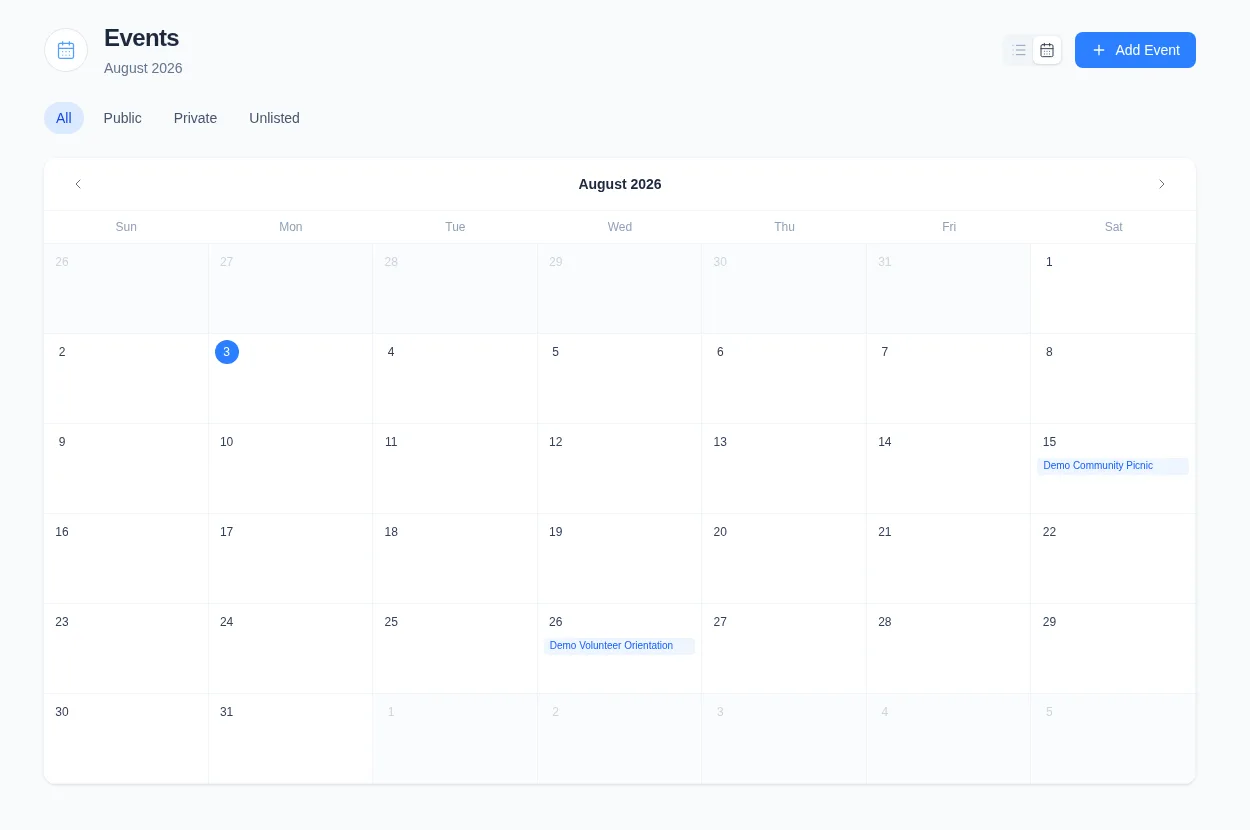
The visibility filter does not filter by status. For example, Public can include both Published and Draft public Events.
Use the calendar on a small screen
The same month arrows, visibility filters, dates, and Event links remain available on a narrow screen. Event names are shortened to fit their date cells.
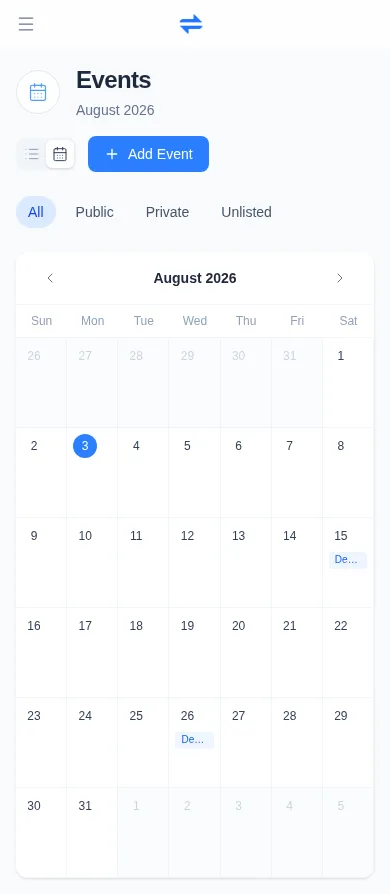
If you need the full name, time, status, or visibility, select the list icon beside the calendar icon. In list view, use Upcoming, Past, or All, or choose a status on a wider screen.
What happens next
Opening an Event takes you to its admin overview; it does not change the Event or notify anyone. Use Back to events to return to the Event list, or select Calendar in the navigation to return to the calendar.
Changing months or visibility only changes the calendar view. It does not change an Event’s date, status, or visibility.
Troubleshooting
An Event is not on the expected date
Open the Event and check its start and end date and time. Engage Spot places it on calendar dates using the church’s timezone. A multi-day Event appears once on each date it spans, including lighter dates from an adjacent month when they are visible in the grid.
The calendar does not show an Event’s time or status
Calendar entries show names only and do not use different styles for Published, Draft, Cancelled, or Trashed Events. Open the Event, or switch to list view, to see its time, status, and visibility.
A date says “+ more”
A date shows up to three Event links, followed by +N more when additional Events share that date. +N more is not a link. Switch to list view and use its time or status filters to find the remaining Event.
Event names are shortened on mobile
Calendar cells stay within the screen width, so long names are shortened. Select the visible Event entry to open it, or switch to list view for more room.
Calendar or Add Event is unavailable
Ask a full Admin to review your Events permissions. A Limited Admin needs Events View permission for the calendar and Events Create permission for Add Event. Team Leaders can open the calendar and add Events, but cannot edit existing Events.