
What this helps you do
Download the complete membership of one Team as a CSV file for review or use in a spreadsheet.
Before you begin
You need one of these roles:
- An Admin.
- A Limited Admin with permission to view Teams.
- A Team Leader. Team Leaders can export only teams they lead.
The Team must have at least one member before the export action appears.
Steps
-
In the admin navigation, select Teams.
-
Select the Team you want to export.
-
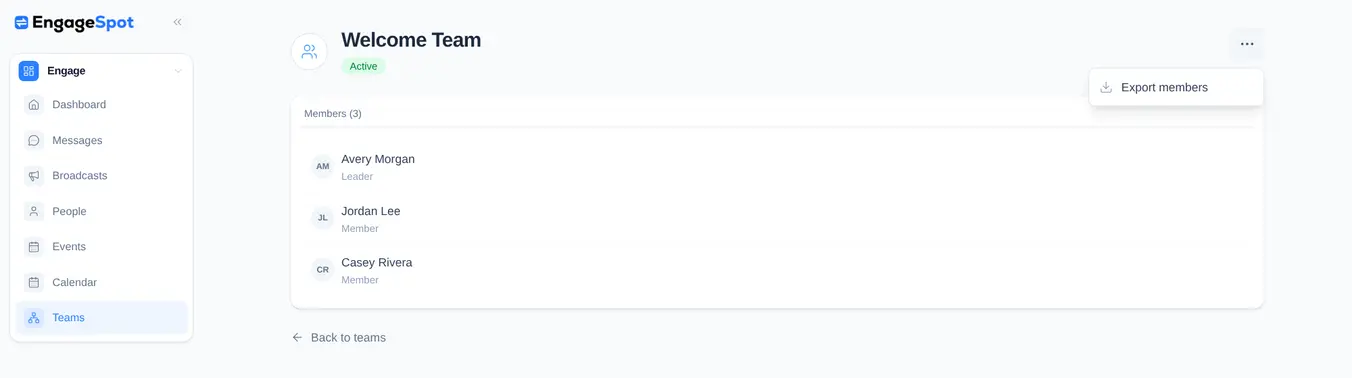
Review the Members section. Leaders appear first, followed by members.
-
Select More team actions (the three-dot button), then select Export members.
What happens next
Engage Spot downloads a file named <team-name>-members-YYYY-MM-DD.csv. The Team name is converted to lowercase words separated by hyphens. For example, Welcome Team downloads as welcome-team-members-YYYY-MM-DD.csv.
The CSV contains these columns in this order:
First nameLast nameEmailPhoneTeam roleSMS enabledEmail enabledJoined at
The Team role value is leader or member. The SMS and email values are true or false. Missing contact details are left empty. Joined at records the membership date and time, including its time-zone offset.
Rows are ordered with leaders first and members second. Within each role, people appear in the order they joined the Team, from earliest to latest.
Troubleshooting
Export members is missing
The Team has no members. An empty Team shows No members yet and does not show Export members in the menu. Add members before exporting.
A Team Leader cannot open the Team
Team Leaders can open and export only teams they lead. Ask an Admin to confirm the leader assignment or export the Team for you.
The export menu is cut off on a narrow phone
At a 390-pixel-wide mobile viewport, the Export members menu opens beyond the left edge and cannot be selected. Use a wider screen to complete the export.