
What this helps you do
Build a Team from people already in your People directory. You can add and remove members, and assign or remove the Leader role for each Team membership.
A membership role and an account role are different:
- Member and Leader describe a person’s place on one Team.
- Team Leader is an account role that lets someone sign in to the admin area. A Team Leader can see a Team only when their membership on that Team is set to Leader.
Assigning Leader on a Team does not by itself give the person admin access or change their account role.
Before you begin
The people and Team must already exist.
A Full Admin can add or remove members and change membership roles. A Limited Admin can add a person when they have People — View and Teams — Create, but the controls for removing members and changing Member or Leader are available only to a Full Admin. Team Leaders can view the members of Teams they lead, but cannot change Team membership.
Steps
Add a member
- In the admin navigation, select People, then select the person you want to add.
- Find the Teams card and select the plus button.
- In Search teams…, enter all or part of the Team name.
- Select the Team. The person appears in the Teams card as a Member.
- Repeat these steps for each person you want to add.
A Team that the person has already joined is not shown in the picker, so the same person cannot be added to that Team twice.
Assign or remove a Leader
-
In the admin navigation, select Teams, then select the Team.
-
In Members, open the role menu beside a person.
-
Choose Leader to make the person a Leader of this Team, or choose Member to remove their Leader assignment.
-
Confirm the label below the person’s name and the role menu show the new role.
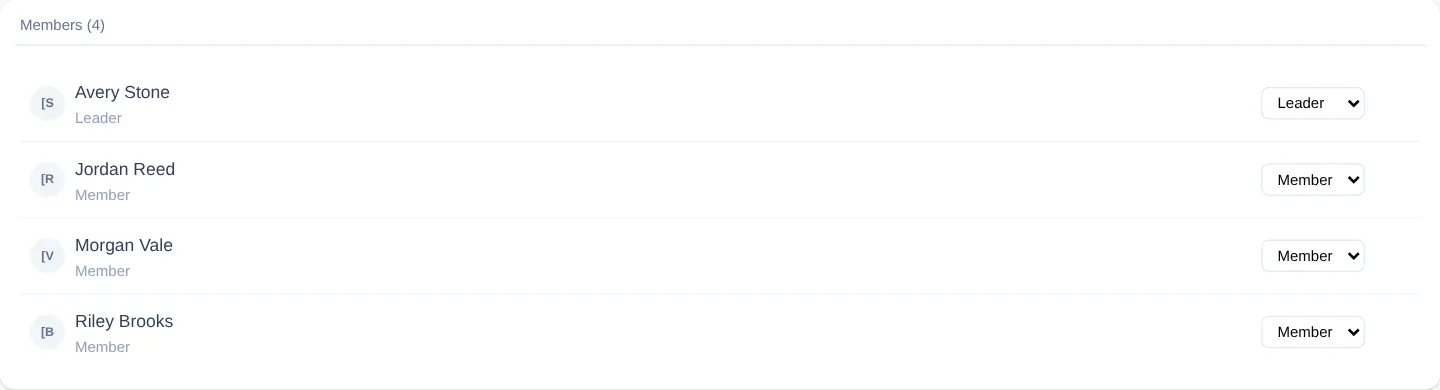
A Team can have several Leaders or no Leaders. Engage Spot does not require one Leader to remain.
Remove a member
- On the Team page, point to the member’s row and select Remove from team (the X).
- Confirm the removal.
- Confirm the person is no longer listed and the Members count decreases.
Removing someone from a Team does not delete their People record or remove them from other Teams.
What happens next
The Members (number) heading shows the current number of unique people on the Team. It counts both Members and Leaders; Engage Spot does not display a separate Leader total on this page.
A signed-in Team Leader’s access is scoped to the Teams where their membership is Leader. Changing that membership to Member, or removing it, removes that Team from their scope.
Troubleshooting
The plus button or Team is missing
The plus button appears only when at least one Team is available to add. Teams the person already belongs to are excluded. If a Limited Admin cannot open the person or add them, ask a Full Admin to check People — View and Teams — Create permissions.
I cannot change a role or remove a member
Only a Full Admin sees the role menus and remove controls. Limited Admins and Team Leaders see a read-only member list, even when a Limited Admin can add people to Teams.
The Team has no Leader
This is allowed. Open the Team as a Full Admin and set a member’s role to Leader when someone should lead it. If that person needs to sign in with Team Leader access, a Full Admin must also give their account the Team Leader role separately.
The member count did not change
Refresh the Team page and check whether the person is already present. Duplicate memberships are prevented, and both Member and Leader rows count toward the same Members total.