
What this helps you do
Create a Team for organizing people, then rename, archive, or reactivate it as your church’s needs change.
Before you begin
To create a Team, you need either:
- Full Admin access, or
- Limited Admin access with permission to view and create Teams.
Editing a Team requires the Limited Admin Edit permission for Teams. Team Leaders can view only the Teams they lead; they cannot create or edit Teams.
Choose a clear Team name before you begin. You can add leaders and members after creating the Team.
Steps
Create a Team
- In Engage Spot, select Teams.
- Select Add Team.
- Enter a Name.
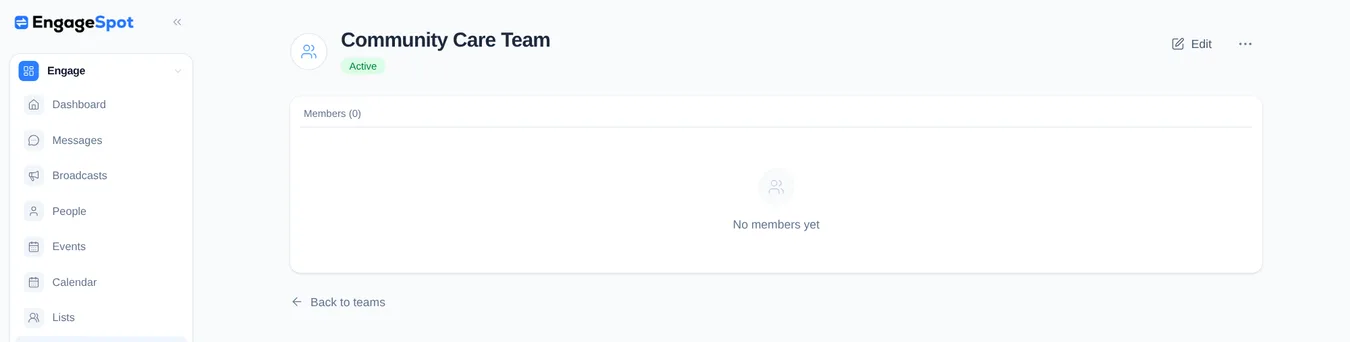
- Select Create Team. Engage Spot opens the new Team’s overview. New Teams start Active with no members.
Rename or change a Team’s status
-
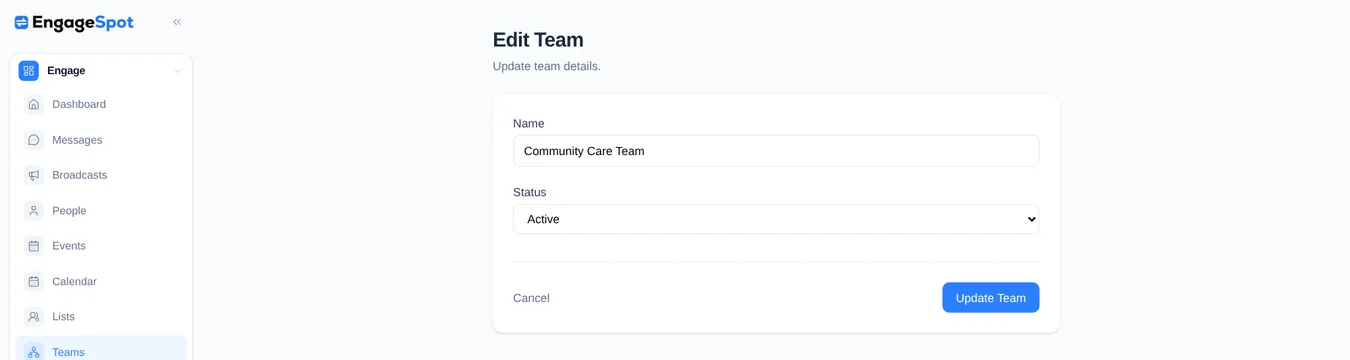
Open Teams, then select the Team you want to manage.
-
Select Edit.
-
Change the Name if needed.
-
Under Status, choose Active or Archived.
-
Select Update Team.
What happens next
The Team overview shows its current status and members. From here, admins with the appropriate permissions can manage the Team’s leaders and members.
An Archived Team remains available from the Teams status filter but is no longer active. To use it again, edit the Team and change Status to Active.
To remove a Team from the normal status lists, open its overview, select More team actions, and select Move to trash. You can find it with the Trashed status filter and restore it later.
Creating or editing a Team does not send messages or invitations.
Troubleshooting
The Team is not created or updated
Name is required. If it is blank, Engage Spot shows Name can’t be blank. Enter a name and select Create Team or Update Team again.
You cannot see Teams or Add Team
Ask a Full Admin to check your Limited Admin Team permissions. View permission is required to see Teams, and Create permission is required to add one.
Team Leaders see only Teams they lead. They do not see Add Team and cannot open the create or edit pages directly.
You cannot edit a Team
Limited Admins need the Team Edit permission. Ask a Full Admin to update your permissions.