
What this helps you do
Remove a Team from active use while keeping its membership, find archived or trashed Teams, and restore a trashed Team when it is needed again.
Before you begin
- A full Admin can archive, trash, and restore Teams.
- A Limited Admin needs Teams View permission to find and open Teams, Edit permission to archive or restore them, and Delete permission to move them to trash.
- A Team Leader can find and open Teams they lead, including archived or trashed ones, but cannot change a Team’s status, move it to trash, or restore it.
Choose the state that matches what you want to do:
- Active: the Team is available for adding people and choosing as a new Broadcast audience.
- Archived: the Team is kept for reference but removed from active Team choices. You can return it to Active by editing it.
- Trashed: the Team is removed from the normal Active view until someone restores it. Trash is not permanent deletion.
Steps
Archive a Team
- In the admin navigation, select Teams.
- Open the Team, then select Edit.
- Under Status, choose Archived.
- Select Update Team.
Engage Spot returns to the Team and shows its Archived status. To find it later, return to Teams and select Archived or All.
To reactivate it, open the archived Team, select Edit, change Status to Active, and select Update Team.
Move a Team to trash
-
Open the Team.
-
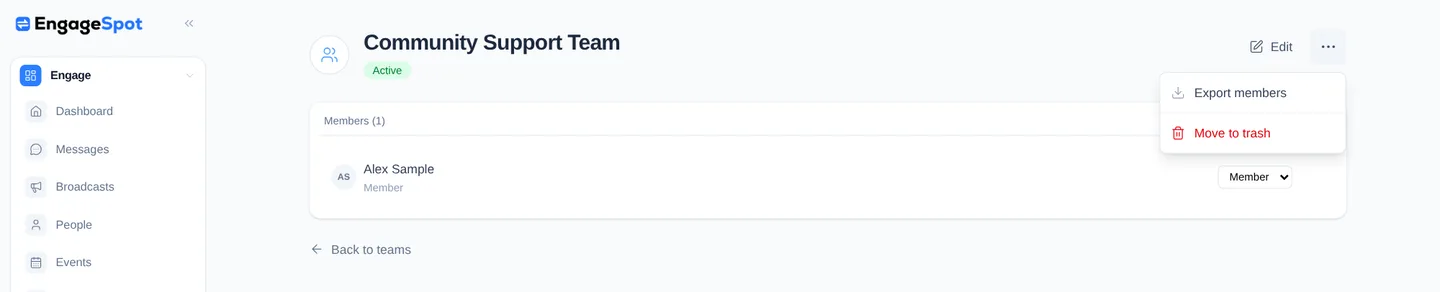
Open More team actions in the top-right corner.
-
Select Move to trash.
-
At Move “Team name” to trash? It will no longer appear with active teams., confirm the action.
Engage Spot returns to Teams, shows Team moved to trash., and removes the Team from the default Active view.
Find and restore a trashed Team
-
In Teams, select Trashed.
-
Open the Team.
-
Open More team actions, then select Restore.

Engage Spot restores the Team as Active, returns to the Team, and shows Team restored. The Team is available again in the Active view and active Team choices.
What happens next
Archiving and trashing change the Team’s status; they do not delete the Team or its memberships. Members and Leaders remain assigned through either state and are still present when the Team is restored or reactivated.
Only active Teams are offered when adding a person to a Team or choosing a new Team audience for a Broadcast. Existing Broadcast records are retained. The Teams item in the admin navigation depends on the signed-in person’s role and Teams permission; changing one Team’s status does not hide that navigation item.
The admin interface does not provide a permanent-delete action for a trashed Team. Trashed is the final lifecycle boundary currently available.
Troubleshooting
The Team disappeared
The default Teams view shows only active Teams. Select Archived, Trashed, or All to match the Team’s current status. These filters remain available in the phone layout.
Move to trash or Restore is missing
Ask a full Admin to review your Teams permissions. A Limited Admin needs Teams Delete permission for Move to trash and Teams Edit permission for Restore. Team Leaders cannot use either action.
A direct Team link says Not Found
You may not have access to that Team. A Limited Admin needs the relevant Teams permission. A Team Leader can open only a Team they lead; direct links to other Teams return Not Found. Signing out also prevents access to admin Team pages.
The Team is missing from a new Broadcast audience
Only active Teams can be selected as new Broadcast audiences. Restore a trashed Team, or edit an archived Team and change its status to Active. Team Leaders can choose only active Teams they lead.
Members seem to be missing after restore
Restoring does not remove memberships. Confirm that you restored the intended Team and that the Members count is correct. If someone was removed separately, add them to the active Team again.