
What this helps you do
Start a Broadcast from a Form and prepare an SMS or email for the people who submitted it. Engage Spot takes a one-time snapshot of the submitters when you open Review.
Before you begin
- A full Admin can prepare a Broadcast to Form submitters.
- A Limited Admin needs View permission for Forms to start from the Form and View and Create permission for Broadcasts to save and review the draft. Edit permission lets them change the saved draft, and Delete permission lets them discard it.
- Team Leaders cannot use a Form audience. They can prepare Broadcasts only for active Teams they lead.
- The Form must have at least one submission. Inbox, Archived, and Trashed submissions are all included.
- Your church needs an available sender phone number for SMS or sender email address for email.
A person is listed once even if they submitted the Form more than once. The audience includes submitters regardless of whether they can receive the message: an SMS requires a phone number and the latest SMS permission Given; an email requires an email address and the latest email permission Given.
Steps
-
In the admin navigation, select Forms, then open the Form.
-
Open More form actions (the ellipsis) and select Broadcast to submitters.
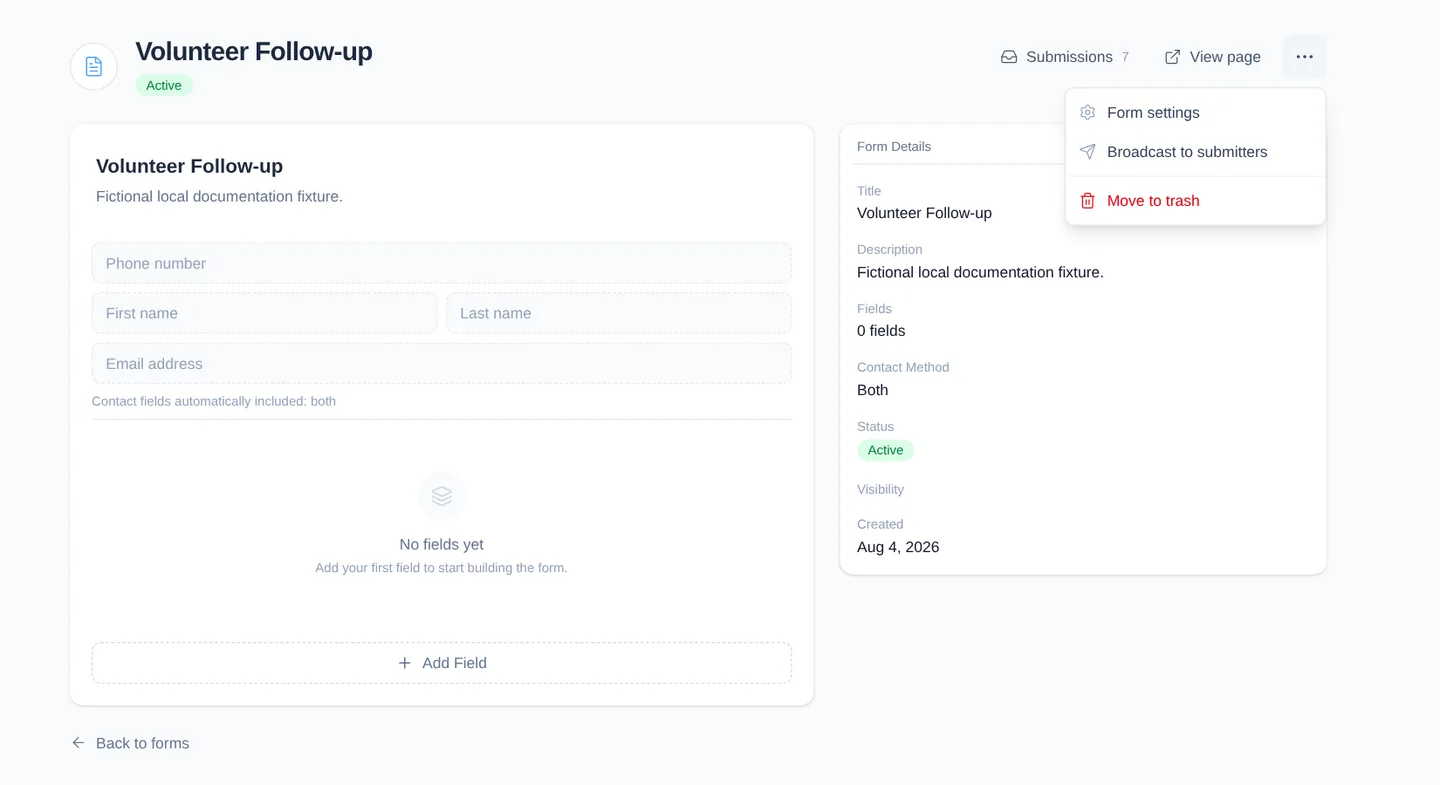
This action appears only when the Form has at least one submission and you can create Broadcasts.
-
Under How do you want to reach them?, choose SMS or Email, then select Continue.
-
On Audience, confirm that Form and the intended Form are selected. Check the Recipients count and list, then select Continue.
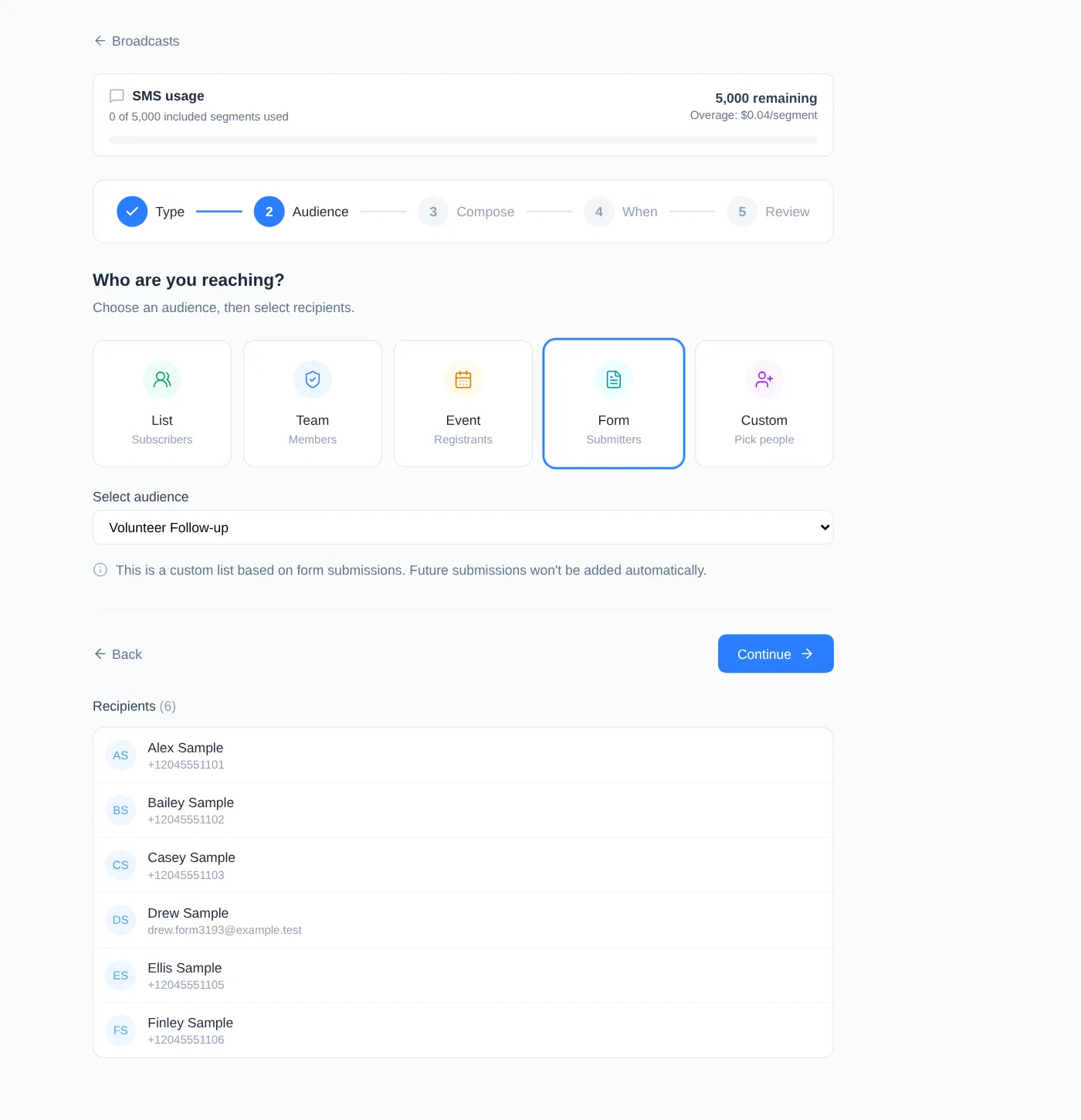
The list contains distinct People records from all of the Form’s submissions. It is not a reachable-recipient count.
-
Compose the message and choose an available sender. For email, enter a Subject and Message; for SMS, enter the Message.
-
Select Continue, choose Send Now or Schedule for Later, and select Review. Review saves a draft and snapshots the displayed people into a one-time audience.
-
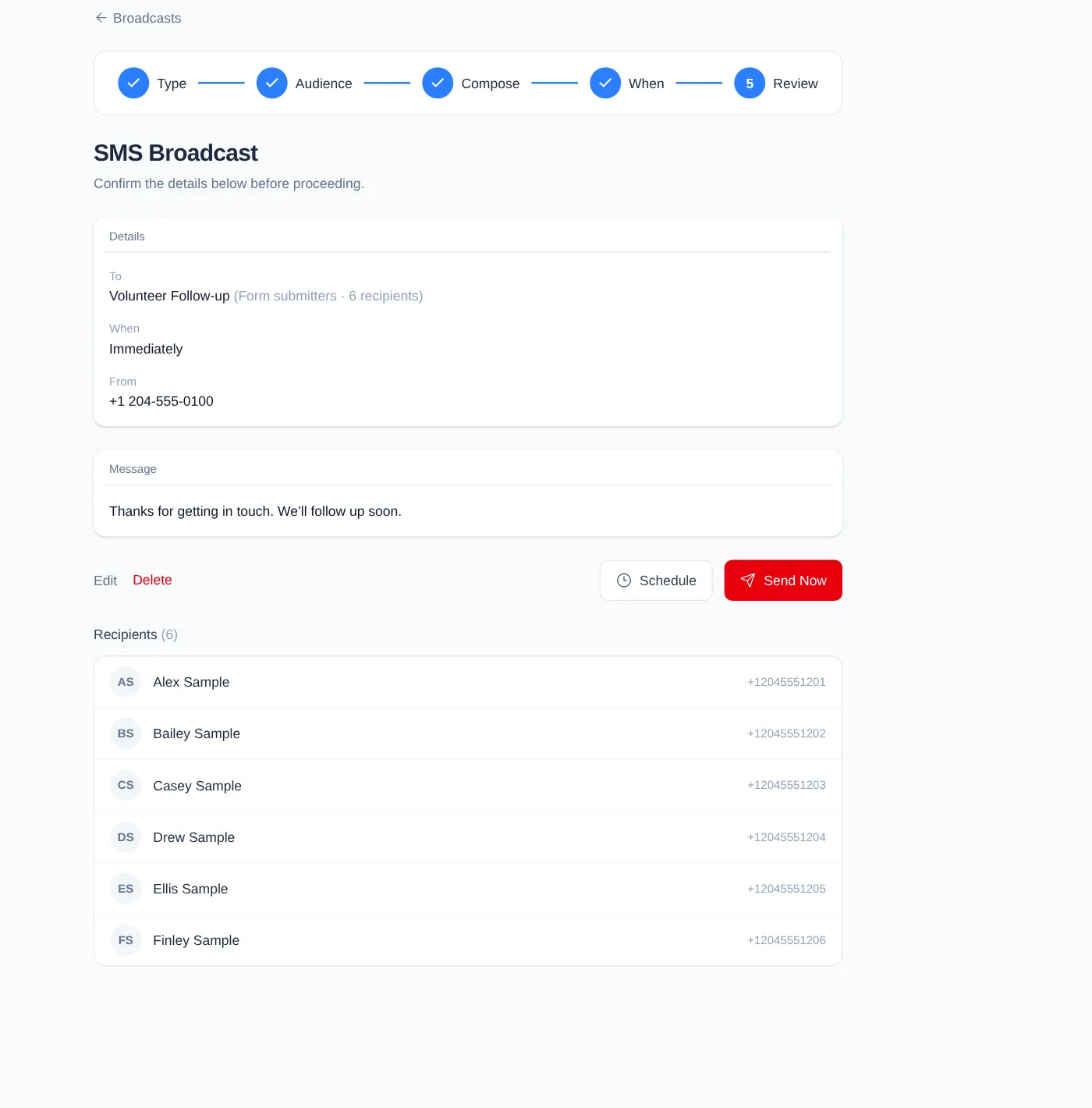
On Review, check the Form name, Form submitters label, recipient count, timing, sender, message, and recipient list.
-
Select Edit if something needs to change. Editing keeps the saved one-time recipients; it does not automatically add newer submissions. Recheck the audience label, count, and complete recipient list after returning to Review.
-
When the draft is ready, Send Now opens the final immediate-send confirmation. Schedule or Schedule Broadcast opens the scheduling controls. Confirming either final action sends or schedules the Broadcast, so stop and choose Cancel if you are not ready.
What happens next
The draft’s Form audience is a snapshot, not a reusable List and not a live connection to the Form. Submissions added after Review do not join that draft. Changing a submission’s Inbox, Archived, or Trashed status also does not change an existing snapshot.
The Review count is the number of distinct people in the snapshot. Actual recipient records are created only when delivery begins, after Engage Spot checks the chosen channel’s contact detail and latest communication permission.
Troubleshooting
“Broadcast to submitters” is missing
Confirm that the Form has at least one submission. A Limited Admin also needs View permission for Forms and Create permission for Broadcasts. Team Leaders cannot use Form audiences.
The Form shows no recipients
The Form has no submissions, so Continue remains unavailable. Return to Forms and choose a Form with at least one submission.
The recipient count is lower than the submission count
One person may have submitted more than once. Engage Spot removes duplicates and lists that person once.
Archived or Trashed respondents appear
Form audiences use all submissions, not only Inbox submissions. If someone should not be contacted, select Edit, review the one-time recipient list, and remove them before proceeding.
Some listed people may not receive the Broadcast
Review shows everyone in the snapshot, not only reachable people. For SMS, check for a phone number and latest SMS permission Given. For email, check for an email address and latest email permission Given.
A recent submitter is missing from an existing draft
The audience was frozen when Review first saved the draft. Start a new Broadcast from the Form to take a fresh snapshot, or edit the audience and verify every displayed recipient before returning to Review.