
What this helps you do
Review who Engage Spot created an SMS or email message for, understand delivery statuses and failures, and download a CSV delivery report.
Before you begin
You need access to the Broadcast:
- Admins can review every Broadcast in their church.
- Limited Admins need View permission for Broadcasts.
- Team Leaders can review only Broadcasts sent to Teams they lead.
A Broadcast’s original audience can be larger than the recipient count on its results page. Engage Spot creates messages only for people who have the required contact method and Given permission for that channel. Being on a List, Team, or Event does not by itself make someone reachable.
Steps
Review the delivery summary
-
In the admin navigation, select Broadcasts.
-
Under Sent, select the Broadcast you want to review.
-
Find Recipients. The number beside the heading is the number of individual messages created—not necessarily the original audience size.
-
Review the summary:
- Delivered means delivery was confirmed.
- Sent means the provider accepted the message, but delivery has not been confirmed.
- Failed includes messages with a Failed status and SMS messages with an Undelivered status.
- Pending includes messages that are still Draft, Scheduled, Queued, or Sending.
-
Review each recipient’s status. Failed and undelivered rows may include a plain-language reason, the destination used, and a provider error code.
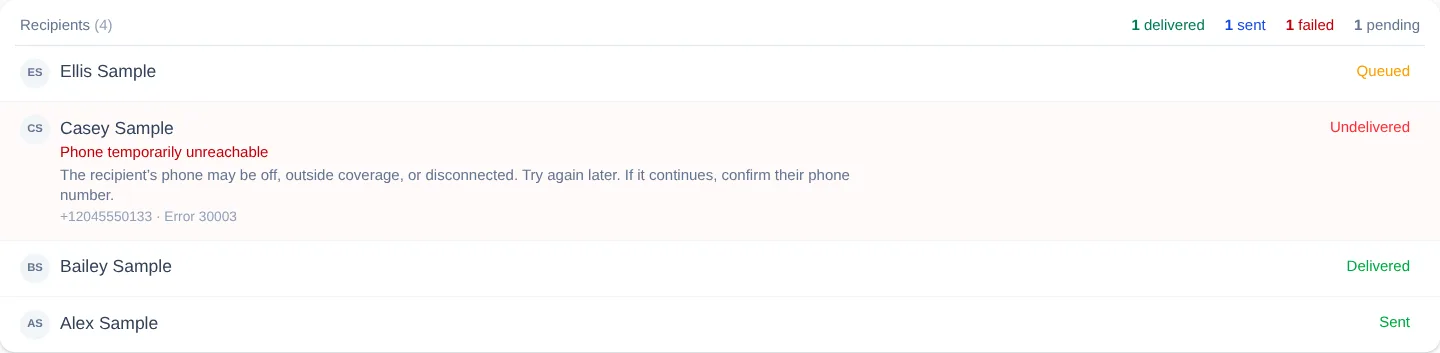
The recipient results do not currently have search, filters, or pagination. All messages created for the Broadcast appear together on the page, with the newest records first.
Export the delivery report
- At the top of the Broadcast, open More actions (the ellipsis).
- Select Export report.
- Open the downloaded CSV file. It contains every delivery row for the Broadcast.
The filename follows <audience-name>-<sms-or-email>-delivery-report-YYYY-MM-DD.csv. Names are converted to lowercase words separated by hyphens.
The report contains these columns: First name, Last name, Destination, Status, Error code, Error message, Scheduled for, Created at, and Updated at. Destination contains the phone number for an SMS Broadcast or the email address for an email Broadcast.
What happens next
Delivery information can change after you first open the page. For example, a message may move from Sent to Delivered or Undelivered when the provider reports its final status. Revisit the Broadcast to see the latest recorded results and export a new report when needed.
The report reflects message records created for the Broadcast. It does not add audience members who were skipped because they lacked the required contact method or Given communication permission.
Troubleshooting
Recipients shows 0
If the page says No recipients yet, no individual message records exist for that Broadcast. The CSV still downloads, but contains only the column headings. Check whether the audience had people with the required contact method and Given permission when delivery was prepared.
The recipient count is smaller than the audience
The audience count is membership, while the recipient results count created messages. For SMS, a person needs a phone number and Given SMS permission. For email, they need an email address and Given email permission.
A message is Sent but not Delivered
Sent confirms only that the provider accepted the message. Delivery may still be reported later. Revisit the Broadcast to check for a final status.
A message Failed or is Undelivered
Read the explanation beneath the person’s name. Confirm their contact details and communication permission. Keep the error code from the page or CSV if you need to contact Engage Spot support.
I cannot find a recipient search or status filter
Delivery results currently show all rows together and do not provide search or filtering. Use Export report to work with the results in a spreadsheet.
A Team Leader cannot open a Broadcast
Team Leaders can open results only for Broadcasts whose audience is a Team they lead. Ask an Admin to review other Broadcasts.