
What this helps you do
Find a Form shared by your church, provide your contact details and answers, and confirm that Engage Spot received your response.
Before you begin
The Form must be available for responses.
- A public Form appears under Signups on your church’s Engage Spot site.
- An unlisted Form opens only from the direct link your church gives you.
- A closed or removed Form does not appear under Signups and cannot be opened from an old direct link.
You can submit a Form while signed in or signed out. If you are signed out, the Form begins by asking for a phone number or email address. The contact method depends on how your church configured that Form.
When you continue while signed out, Engage Spot records communication permission for the phone number and any email address you provide. The page explains this before you continue. When you are signed in, Engage Spot uses the contact details already connected to your account and does not change their existing communication permissions.
Steps
Open the Form
- Select Signups on your church’s Engage Spot site.
- Choose the Form you want to complete. If your church gave you a direct link to an unlisted Form, open that link instead.
Continue while signed out
- Under Get started, enter the phone number or email address requested by the Form, then select Continue.
- If Engage Spot asks for more information, enter your required First name and Last name. A Form that starts with a phone number may also offer an optional Email address.
- Select Continue. Engage Spot shows the Form with your contact details already filled in.
Continue while signed in
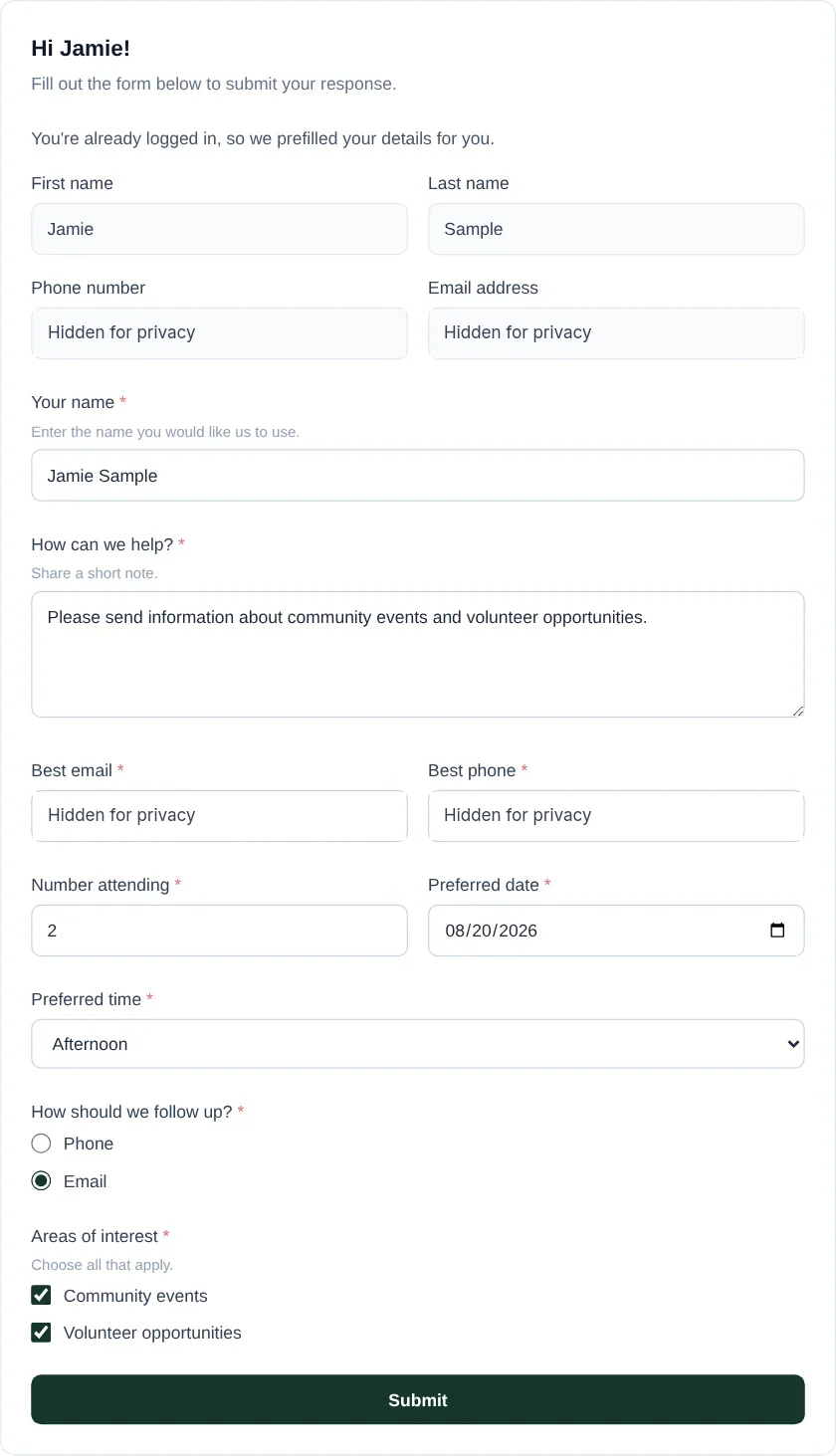
Engage Spot opens the Form with your first name, last name, and available contact details already filled in. Review the name shown after Hi, then continue to the questions.
Complete and submit the Form
-
Answer each question marked with an asterisk (
*). Depending on the Form, you may see:- short or long text boxes;
- email address, phone number, number, or date fields;
- a dropdown list;
- a single-choice list; or
- a multiple-choice list where you can select more than one answer.
-
Review your answers. Your prefilled contact details cannot be changed from this Form.
-
Select Submit.
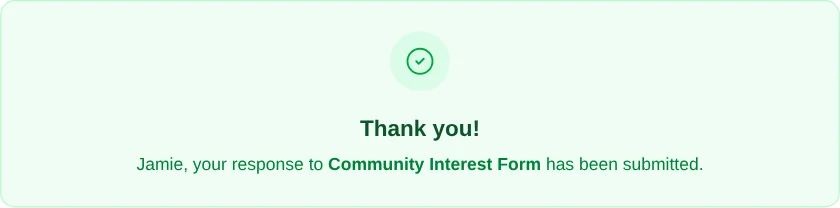
Engage Spot replaces the Form with Thank you! and confirms the name of the Form that received your response.
What happens next
Your response is available to the church team that manages the Form. Form responses do not appear in My Account.
Your church may have configured a separate SMS or email confirmation. A confirmation can be sent only through a contact method for which you have given communication permission. The on-screen Thank you! message confirms the response even when no separate message arrives.
Submitting the Form again creates another response. It does not replace your earlier response or warn you that the same person has already submitted.
Troubleshooting
You cannot find or open the Form
The Form may be unlisted, closed, or removed. Ask your church for the current direct link and confirm that the Form is still accepting responses.
You cannot move past your contact details
Complete every field marked with an asterisk. If the page says Invalid phone number, re-enter a valid US or Canadian cell phone number. You can also select I don’t have a US/Canada number and continue with an email address.
Submit does not complete the Form
Complete every question marked with an asterisk and enter a correctly formatted email address where requested. Your browser keeps you on the Form and focuses the first answer that needs attention.
The page says Too many attempts
Wait a few minutes, then reopen the Form and try again.
You did not receive an SMS or email confirmation
The on-screen Thank you! message means Engage Spot received your response. A separate message is optional and also requires Given communication permission for that contact method. Ask your church if you need help confirming your response.
You need to change a response
Submit the Form again with the corrected answers or contact your church. Each submission is saved as a separate response.