
What this helps you do
Move an Event to trash so it no longer appears publicly, find it later, and restore it without losing its details or registrants.
Before you begin
- A full Admin can trash and restore Events.
- A Limited Admin needs Events View permission to find and open the Event, Delete permission to move it to trash, and Edit permission to restore it.
- A Team Leader can view Events but cannot trash or restore them.
Trashing is different from these other choices:
- Choose Cancelled when the Event is no longer happening but should remain in the normal admin Events list with a Cancelled status.
- Choose Close Registration when the Event is still happening but should stop accepting new registrations. Existing registrants remain and the public Event page stays available.
- Choose Move to trash when the Event should disappear from public access and the normal admin Events list until someone restores it.
Steps
Move the Event to trash
-
In the admin navigation, select Events.
-
Open the Event.
-
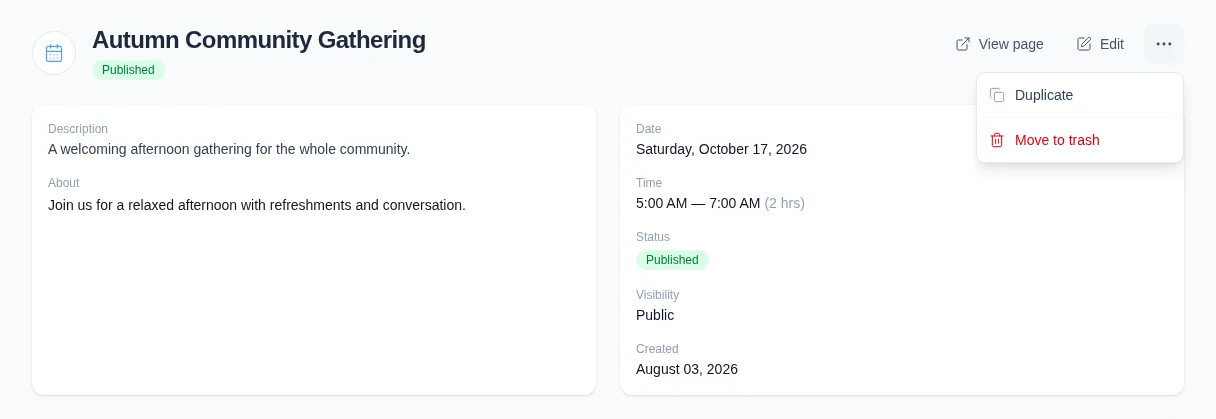
Open More event actions in the top-right corner.
-
Select Move to trash.
-
At Move “Event name” to trash? It will no longer appear publicly., confirm the action.
Engage Spot returns to Events and shows Event moved to trash. The Event is removed from the normal Events list, the public Events page, and its direct public link.
Find a trashed Event
- In Events, select Trashed from the status filters.
- Select the Event you want to review.
The Event details page shows a Trashed status. Its details and registrants remain available to admins with permission.
Restore the Event
-
On the trashed Event, open More event actions.
-
Select Restore as draft.
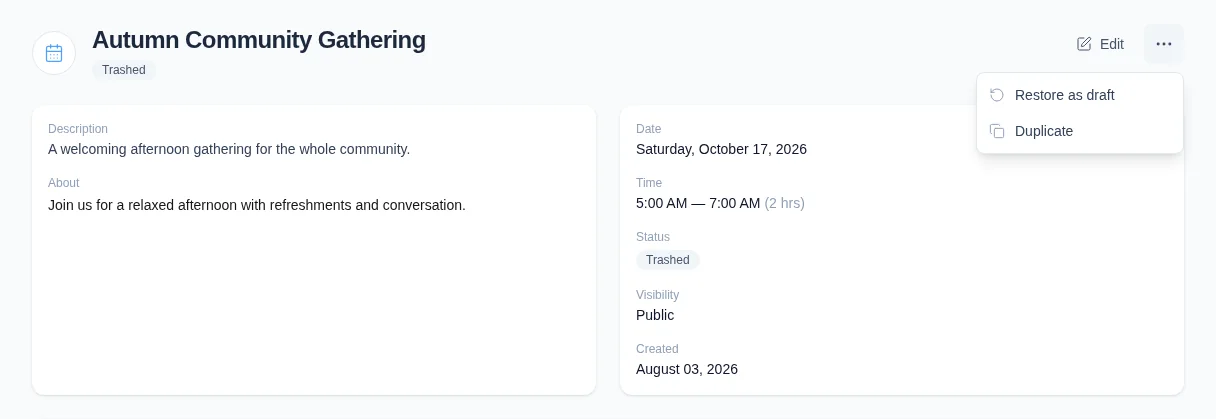
Engage Spot restores the Event with Draft status. It is no longer hidden in the trash, but it remains unavailable publicly. Find it under the relevant Upcoming, Past, All, or Draft view.
- To make the Event public again, select Edit.
- Review its details, date, registration settings, and visibility.
- Change Status to Published, then select Update Event.
What happens next
Trashing changes the Event’s status rather than permanently deleting it. The Event keeps its description, formatted About content, feature image, registration settings, and existing registrants. Its history is also retained. An Unlisted Event’s direct public link stops opening while the Event is trashed, just like a Public Event’s link.
If the Event was pinned to the church landing page, moving it to trash removes that pin. Restoring does not pin it again; publish the Event and add the pin again if it should return to the landing page.
A restored Event is always a Draft, even when it was Published before being trashed. Its previous visibility remains selected, but Draft status prevents both public listing and direct public access until it is published again. Engage Spot does not currently offer a permanent-delete action for trashed Events.
Troubleshooting
Trashed is unavailable on a phone
The status filters, including Trashed, are hidden in the current narrow phone layout. Use the Events list on a tablet or computer to find a trashed Event. If you already have its admin Event link, you can open that link and select Restore as draft from a phone.
Move to trash or Restore as draft is missing
Ask a full Admin to check your Events permissions. A Limited Admin needs Delete for Move to trash and Edit for Restore as draft. Team Leaders cannot use either action.
The restored Event is not public
Restored Events have Draft status. Select Edit, change Status to Published, and confirm the intended Visibility. A Public Event appears on the public Events page; an Unlisted Event opens only through its direct link; a Private Event does not open publicly.
Also confirm that the Event has not ended and that the church’s public Events page is enabled.
The Event did not return to the landing page
Trashing removes its landing-page pin. After restoring and publishing the Event, edit it and turn Pin to landing page on again.
You only need to stop new registrations
Do not trash the Event. Select Close Registration on the Event instead. This keeps the public Event page and all existing registrants while preventing new registrations.