
What this helps you do
Use an existing Event as the starting point for a new one. Engage Spot copies its details into a separate private draft so you can update the dates and other information before publishing it.
Before you begin
- A full Admin can duplicate, edit, and publish an Event.
- A Limited Admin needs Events View and Create permissions to open and duplicate an Event. They also need Events Edit permission to change or publish the new draft.
- A Team Leader can open and duplicate an Event. The duplicate is a private draft, but Team Leaders cannot edit or publish it; ask an Admin or a Limited Admin with Events Edit permission to finish it.
Duplicating an Event does not notify anyone or send a registration confirmation.
Steps
-
In the admin navigation, select Events.
-
Open the Event you want to copy.
-
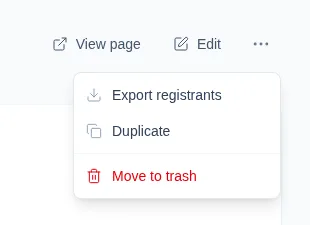
Open More event actions in the top-right corner and select Duplicate.
-
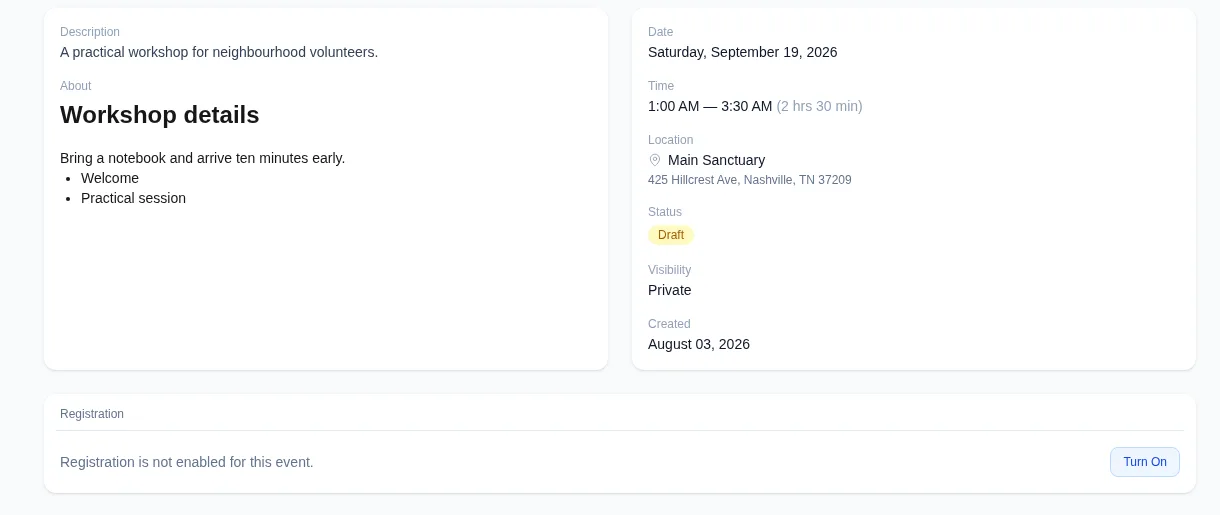
Engage Spot opens the new Event. Its name ends with (Copy), its status is Draft, and its visibility is Private.
-
Select Edit and review the copied information before publishing:
- Name and description
- About formatted content
- Location
- Start and end date and time
- SMS and email confirmation settings and content
The dates are copied without changing them. Update them when the duplicate is for a different date.
-
Review the settings that are deliberately reset:
- Registration is turned off and its closing time is cleared.
- No registrants are copied.
- Pin to landing page is off.
If the original Event has a feature image, the duplicate uses the same image. Any Broadcasts and recent activity remain with the original Event.
-
Update the name, dates, registration options, and any other details that should differ.
-
Leave Status as Draft while you review the Event. When it is ready, choose Published, select the appropriate Visibility, and select Update Event.
What happens next
The duplicate is a separate Event. Editing, publishing, or registering people for it does not change the original Event.
Although registration starts turned off, the original Event’s SMS and email confirmation choices and content are retained. Review those settings before turning registration on. Existing registrants are never added to the duplicate, and no confirmation is sent until someone registers for the published Event.
Troubleshooting
Duplicate is unavailable
A Limited Admin needs Events Create permission. If they can view the Event but do not have that permission, Duplicate is hidden and a direct duplication request is rejected. Ask a full Admin to review their access.
You cannot edit the duplicate
A Limited Admin also needs Events Edit permission. Team Leaders can create the duplicate but cannot edit or publish it. Ask an Admin or a Limited Admin with Events Edit permission to complete it.
The copied Event has the wrong date
Duplication preserves the original start and end date and time, even when those dates have passed. Select Edit, enter the new Start Date & Time and End Date & Time, and select Update Event.
Engage Spot asks you to fix missing details
Name, Start Date & Time, and End Date & Time are required when you edit the duplicate. Complete any field named in Please fix the following errors, then select Update Event again.
Registration is off on the duplicate
This is expected. Registration always starts off and no registrants are copied. After reviewing the dates and copied confirmation content, turn registration on if the new Event should accept registrations.